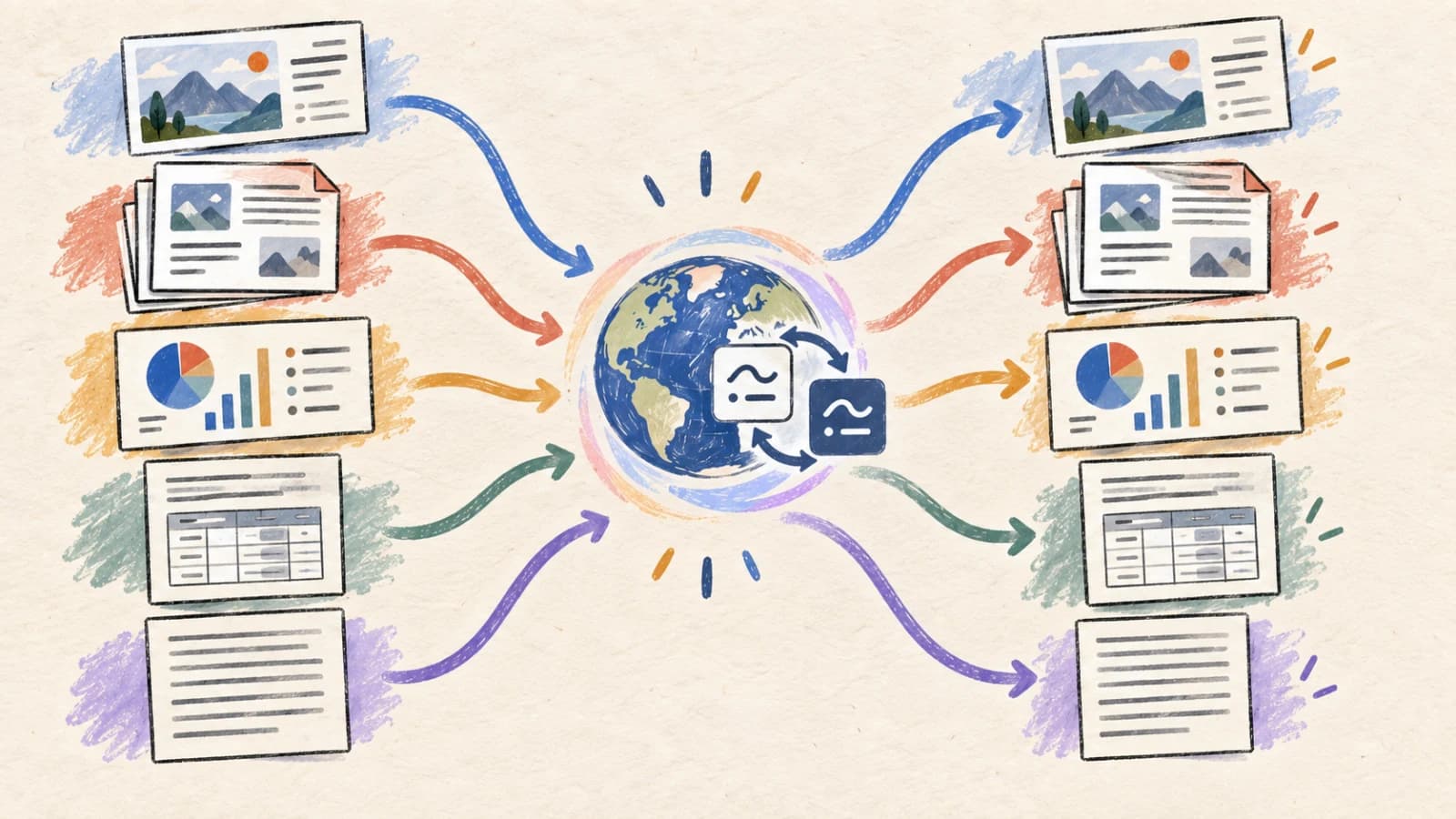
How to Translate Text in an Image Without Retyping It
Quick answer To translate text inside an image without retyping, use an image translator that detects the text and places the translation back into the picture. Upload a clear image, select the languages, then review names, numbers and text boundaries before exporting. ImageTranslate supports this workflow. If you only need the words, OCR followed by text translation may be sufficient.
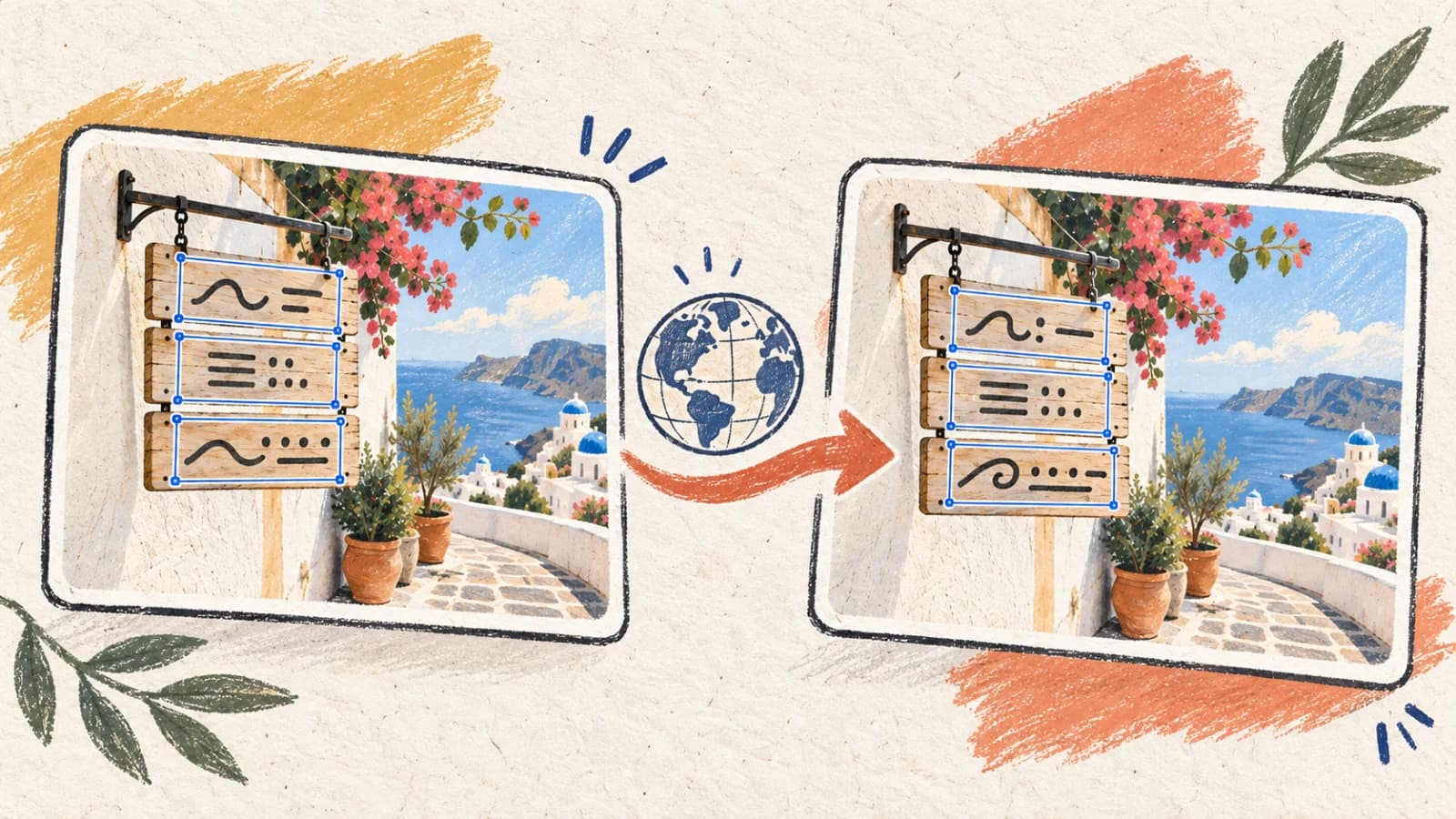
Translating text embedded within an image is a complex spatial problem. Unlike documents containing selectable text strings, images store words as a raw grid of colored pixels. You cannot copy and paste text from a screenshot, system schematic, infographic, product packaging label, or technical blueprint into standard translation engines without losing the spatial context and the layout.
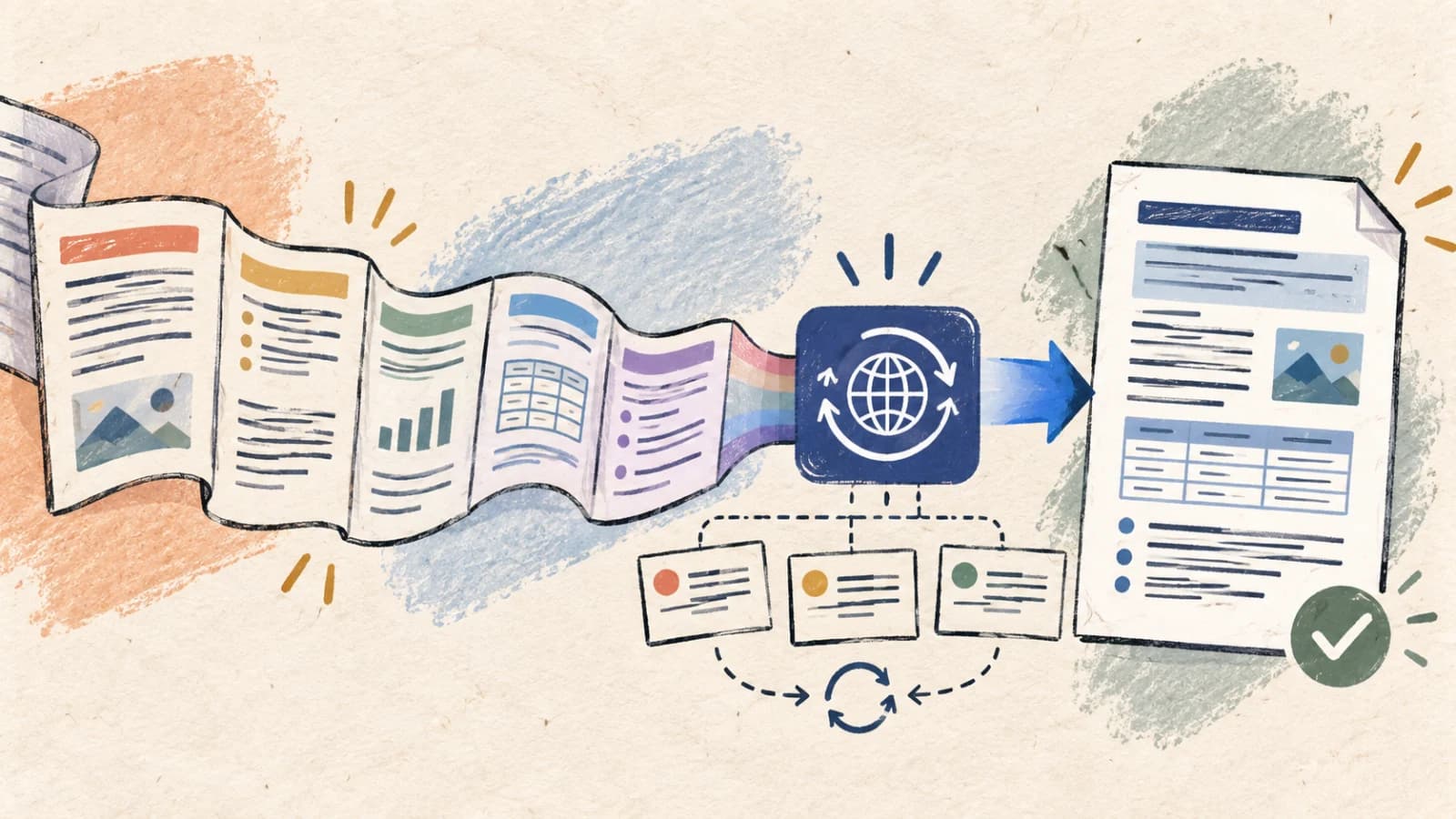
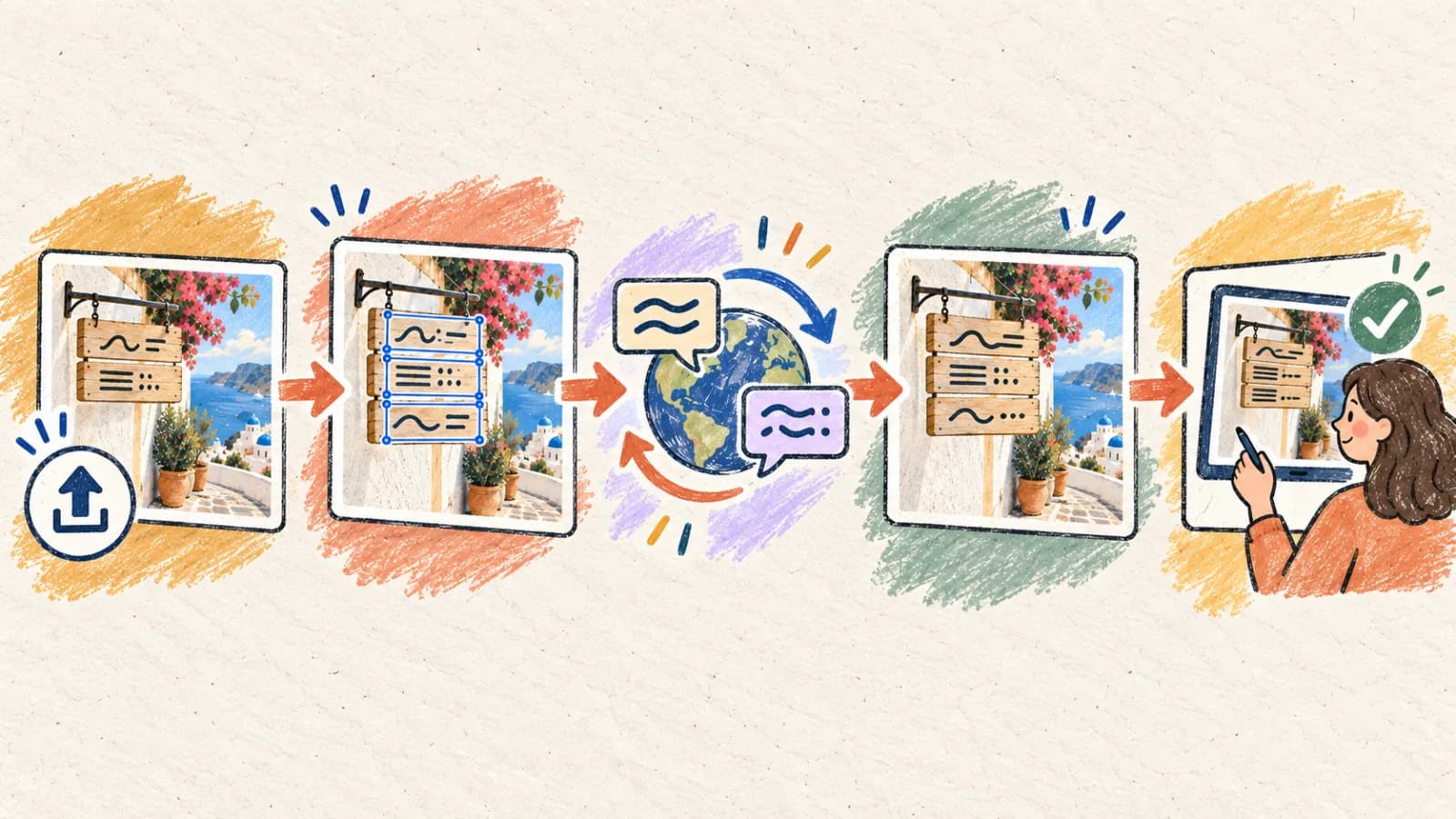
The traditional solution was manual graphic re-typesetting: erasing original text, painting over the background (inpainting), and drawing new localized text boxes by hand. Modern layout-preserving image translators automate this entire pipeline by coordinating three systems: Optical Character Recognition (OCR) for spatial text detection, Large Language Models (LLMs) for context-aware machine translation, and visual inpainting algorithms to replace text without leaving visual scars.
This guide explores the technical mechanics of image translation, compares automated and manual workflows, details mobile camera optimization steps, and provides a strict quality-assurance checklist for professional production environments.
Key takeaways
- Automated layout-preserving image translation is ideal when spatial placement, arrows, captions, and visual structure are essential to understanding.
- OCR-to-text translation is preferred when the visual layout is irrelevant and you only need raw text strings for analysis.
- High-resolution source files are critical; aggressive JPEG compression from messaging apps blurs thin letter strokes and degrades OCR confidence scores.
- Script expansion is a major layout challenge; translated text (especially from English to German or Spanish) often requires active adjustments in font tracking, leading, and boundaries.
- Always lock proper brand names, system IDs, and model numbers inside a terminology glossary to prevent AI engines from translating them.
Why is text inside an image difficult to translate?
An image translator must solve several interdependent computer-vision and linguistic challenges. A failure at any point in the pipeline cascade degrades the final visual output.
Words are pixel grids, not character strings
A JPEG or PNG file contains no semantic text layers. The engine must run OCR algorithms to segment lines, locate text block boundaries, and reconstruct reading order. Stylized fonts, drop shadows, and busy image backgrounds can introduce noise that degrades the OCR extraction confidence.
Perspective distortion and rotation warping
Mobile photographs of signs, labels, or manuals suffer from perspective tilt and geometric warping. Curved surfaces and varying lighting conditions introduce shadows, causing character segmenters to misidentify letters unless the file is corrected first.
Target language text expansion and contraction
Translated text may need more or less space depending on the source, target language and wording. Short labels can expand disproportionately. Review each text region and adjust font size or spacing as needed.
Erasing original text leaves visual scars
Replacing text requires erasing the original pixels. Simply placing a solid-colored box over the old text looks amateur. The translation engine must run inpainting algorithms that analyze surrounding textures and gradients to dynamically rebuild the background before overlaying translated strings.
Linguistic token collision and brand dilution
Technical schematics and product images contain localized terms alongside non-translatable units like SKU numbers, URLs, and brand names. A naïve AI translator will translate proper nouns (e.g., translating a brand like 'Apple' or 'Red Hat' literally), breaking technical accuracy.
Four ways to translate text in an image
Select your translation workflow based on the required output fidelity, asset reuse, and the consequence of translation errors.
Method 1: Use an automated layout-preserving AI image translator
Screenshots, UI mockups, infographics, diagrams, marketing banners, and product brochures where visual structure must remain intact.
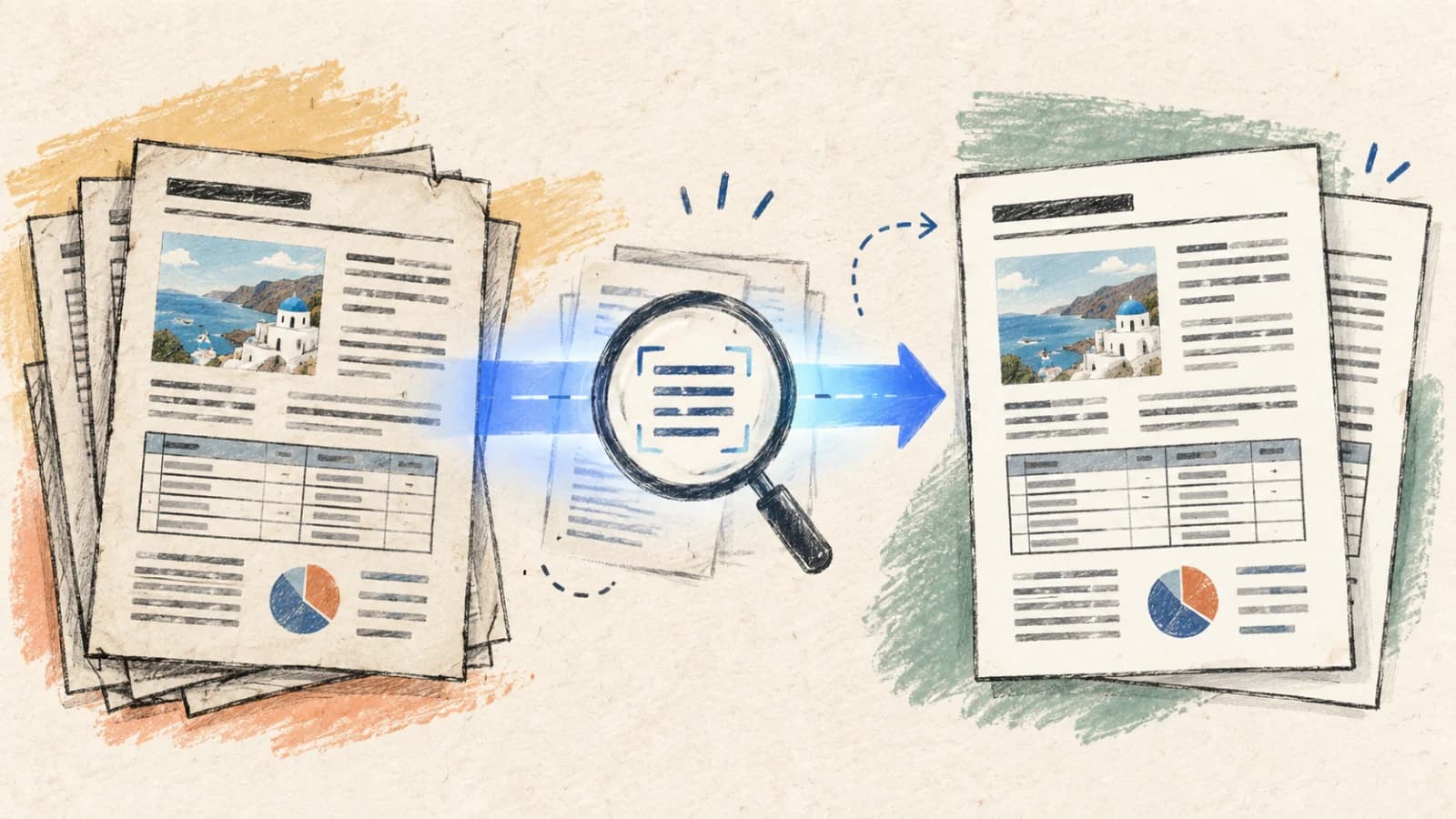
This is the most efficient and scalable method. It handles OCR segment extraction, background texture inpainting, translation, and localized typesetting in a single unified pipeline. By analyzing the original text's bounding boxes and colors, the engine renders translated text using closely matched font families and identical angles.
While automated engines achieve remarkable visual fidelity, complex layouts containing overlapping elements or low-contrast text require human verification. Always inspect the generated assets at 100% zoom, checking for clipped text and ensuring that numbers, decimals, and symbols remain unaltered.
Step by step
- Upload the highest-resolution source image (PNG or lossless WebP preferred) directly to the Image Translator.
- Select the specific target language and specify target translation models matching your budget and domain requirements.
- Configure translation guidelines or terminology glossaries (e.g., brand nouns, acronyms) to prevent model hallucination.
- Execute the translation pipeline and compare the generated image side-by-side with the original file.
- Verify critical spatial alignments and text wrapping before exporting the final image asset.
- Crop out black borders or messaging UI to prevent wasting processing resources on non-content elements.
- Avoid feeding upscaled low-resolution images; instead, use original vectors or raw screenshots.
Method 2: Extract text using OCR, then translate the string raw
Research, document analysis, data entry, and invoices where you only need the textual meaning and the layout is irrelevant.
This two-pass workflow separates optical character extraction from translation. You run an OCR parser over the image to extract plain text, proofread the output to correct character-recognition errors, and then input the sanitized text into an AI text translation engine.
This method is highly flexible and avoids layout engine limitations. However, you completely lose the original visual hierarchy. In multi-column documents, block diagrams, or tables, OCR engines may group horizontal text lines incorrectly, which scrambles sentences and corrupts the translation's context.
Step by step
- Run an OCR scanner or use native mobile text-selection APIs on the source image.
- Check the raw text output for misidentified characters, especially numbers, symbols, and decimal points.
- Paste the clean strings into a context-aware AI text translator.
- Review the translation block by block, cross-referencing with the source image to clarify context.
- Export the finalized translation as a plain text, Markdown, or document file.
Method 3: Translate the text copy, then manually update the design file
High-stakes brand campaigns, product packaging, and key template files where you own layered design files (Canva, Figma, PSD).
For brand assets that must meet pixel-perfect marketing standards, automation should only be used to create translation drafts. First, run your image through an automated translator to quickly obtain a spatial reference draft. Then, export the approved translation copy and manually paste it into your layered design environment.
This approach takes longer but provides ultimate typographic control. Human designers can manually adjust kerning, leading, tracking, and text boundaries to perfectly balance the layout, matching the brand's strict visual guidelines across all localized versions.
Step by step
- Generate an automated visual translation draft using the image translator to serve as a placement reference.
- Compile a structured localization table containing all source strings paired with approved translated copy.
- Open your layered design file (e.g., Figma or Photoshop) and target the individual text layers.
- Replace the original text with the localized strings, adjusting font sizes and line heights to fit the containers.
- Export the final high-fidelity assets and run a comparison review with the source design and the reference draft.
Method 4: Implement a supervised human-in-the-loop pipeline
Regulated packaging, medical instructions, technical schematics, billing charts, and high-value customer-facing materials.
AI engines produce highly fluent first drafts, but they cannot replace professional human translators for high-consequence materials. In a human-in-the-loop workflow, an automated translation engine generates the initial localized layout. A native linguist then reviews the translated image, verifying term accuracy and ensuring no semantic shifts have occurred.
Linguists must review the translation inside the visual layout, not in an isolated spreadsheet. Layout-dependent context (e.g., an arrow pointing to a specific component) is easily lost when translating strings out of context, leading to critical errors.
Step by step
- Generate the localized layout draft using the automated AI image translator.
- Provide both the original and translated images to a native-speaking reviewer for audit.
- Identify and correct mistranslations, awkward phrasing, and structural text-clipping issues.
- Re-render the corrected strings within the image canvas, ensuring proper typographical alignments.
- Archive the approved visual translation and lock the terminology definitions for future updates.
How to translate an image on iOS or Android
Translating images on a mobile device is highly convenient for handling travel signs, physically printed documents, menus, and on-the-go screenshots. Because mobile screens are compact, the primary operational challenge is managing legibility and avoiding interface clipping.
For professional results, always capture the image using high-quality camera settings. If the image was shared via messaging channels, transfer it as an uncompressed document rather than a standard compressed photo to prevent letter distortion.
- Launch the Image Translator inside your mobile browser of choice.
- Upload the target image from your camera roll or pick a structured document from files.
- Select the target language and trigger the automated translation engine.
- Zoom in to inspect small text, technical labels, footnotes, and edge alignments.
- Download and save the high-resolution translated image, confirming clarity and legibility.
Which image translation method fits your task?
Map your translation requirements to the appropriate workflow. Balance the speed of automated processing against the typographic precision of manual design edits.
| Situation | Best choice | Why |
|---|---|---|
| Need to localize screenshots, UI layouts, or infographics rapidly | Layout-Preserving Image Translator | Automates OCR, background inpainting, and typesetting in a single, fast workflow. |
| Analyzing content from screenshots or invoices with no layout needs | OCR Extraction + Text Translation | Simplifies raw text proofreading and avoids unnecessary design reconstruction. |
| Preparing high-profile marketing campaigns with layered design files | Draft Translation + Figma/PSD Retypesetting | Provides designers with absolute control over brand typography, kerning, and styling. |
| Localizing safety signs, medical packaging, or legal documents | AI Layout Draft + Certified Human Review | Adds professional review of terminology, factual meaning and text fit; it does not guarantee regulatory compliance or eliminate errors. |
Tips for better results
Eliminate perspective skew
When photographing physical signs or documents, shoot parallel to the surface. Perspective skew distorts character shapes, drastically lowering OCR confidence. Crop out useless surrounding backgrounds.
Protect proper nouns and SKU strings
Use glossary definitions to lock brand names, technical model numbers, URLs, and variables. AI models should never translate or localize these technical identifier assets.
Optimize for target-language expansion
Always review text containers when translating from English to German, Spanish, or French. Allow for changes in text length, and adjust margins or font sizes when the translation overlaps.
Audit number formatting and notations
Translation alone is not localization. Verify decimal points (commas vs. periods), date patterns (MM/DD vs. DD/MM), and currency symbols to match regional specifications.
Use original source files over screenshots
Avoid screenshots of screenshots. Every compress-and-resave cycle introduces visual artifacts around characters, confusing modern OCR segmentation engines.
Ensure adequate contrast thresholds
Text laid over complex photographic backgrounds or color gradients is hard to detect. Pre-process the image by adjusting contrast or converting to grayscale to assist OCR scanners.
Inspect boundaries at 100% zoom
Small footnotes, captions, and labels near boundaries are prone to clipping during the layout reconstruction phase. Always do a full-zoom quality pass before publishing.
Build reusable translation glossaries
Keep a localized glossary of key phrases and product features. Reusing approved terms ensures multi-channel consistency and shortens review times on subsequent projects.
Frequently asked questions
How does a layout-preserving image translator work under the hood?
It runs a multi-stage pipeline: first, an OCR model segments the image to find text blocks and detect coordinates; second, a vision-based inpainting model cleans the original text from the background; third, an LLM translates the extracted text strings; and finally, a web-canvas engine renders the translation back in place using matched font sizes, colors, and angles.
What image file formats are supported?
The translation pipeline fully supports standard image formats including PNG, JPEG, and WebP. For optimal OCR accuracy and minimal compression noise, lossless PNG files are strongly recommended.
Can the translator preserve the exact corporate font from my source image?
The automated engine analyzes character structures to select a close matching fallback font from a massive library of open-source and system typefaces. For proprietary corporate brand fonts, we recommend generating an automated draft and manually replacing text in your layered Figma or PSD designs.
Why does the OCR engine occasionally miss tiny or stylized text blocks?
OCR accuracy depends on image resolution and letter contrast. Highly stylized cursive fonts, blurred letters, low contrast (e.g., light gray text on a white background), and text rotated at unusual angles can cause detection failures. Pre-cropping or increasing source image contrast can resolve this.
How should I handle translations on my smartphone?
Open our browser-based Image Translator, upload your photo or screenshot directly from your camera roll, let the system translate it automatically, and use pinch-to-zoom to review technical details before downloading the high-quality output.
Is AI image translation safe for sensitive business documents?
Yes, our services use enterprise-grade security protocols. We do not use customer data or uploaded document assets to train AI models, ensuring your sensitive schematics and private documents remain confidential.
Deliver localized visual impact, not just words
High-quality image translation bridges the gap between text localization and visual design. For quick information extraction, OCR-to-text is highly efficient. But when your final deliverable is an image designed to guide, sell, or instruct, a layout-preserving translator is required.
By understanding OCR bounds, managing text expansion, and using custom glossaries, you can scale localized visual assets without compromising your design's technical integrity.