How to Choose the Right Translator for Images, PDFs, and Documents
Quick answer Choose a translator by the source format and the output you need. Use image translation for words embedded in pictures, PDF translation for page-based documents, PPTX translation for slides and document translation for DOCX, TXT or Markdown. Use text translation when formatting is unnecessary. ImageTranslate provides these tools in one workspace; check each tool's languages, limits and estimate before starting.
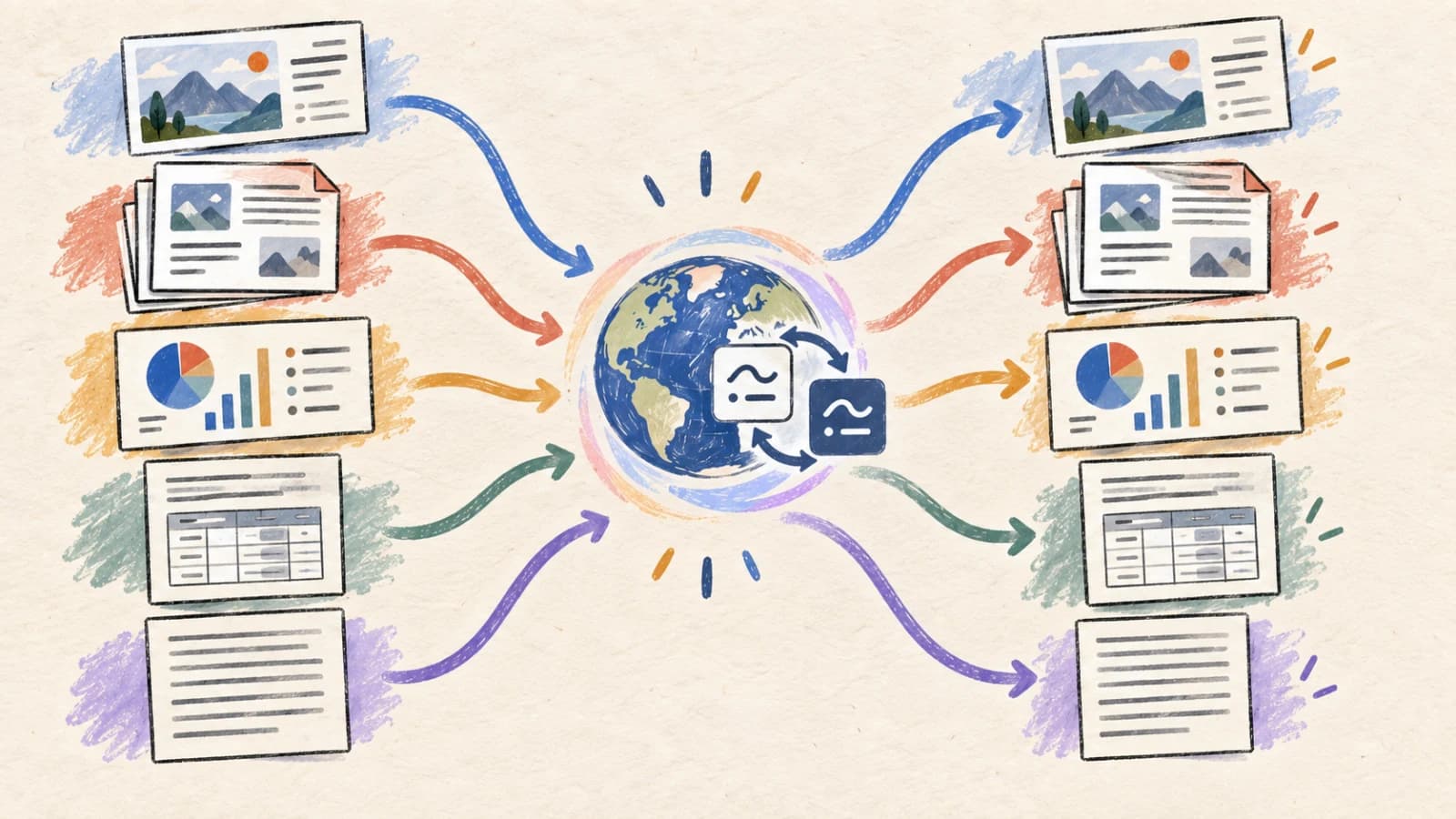
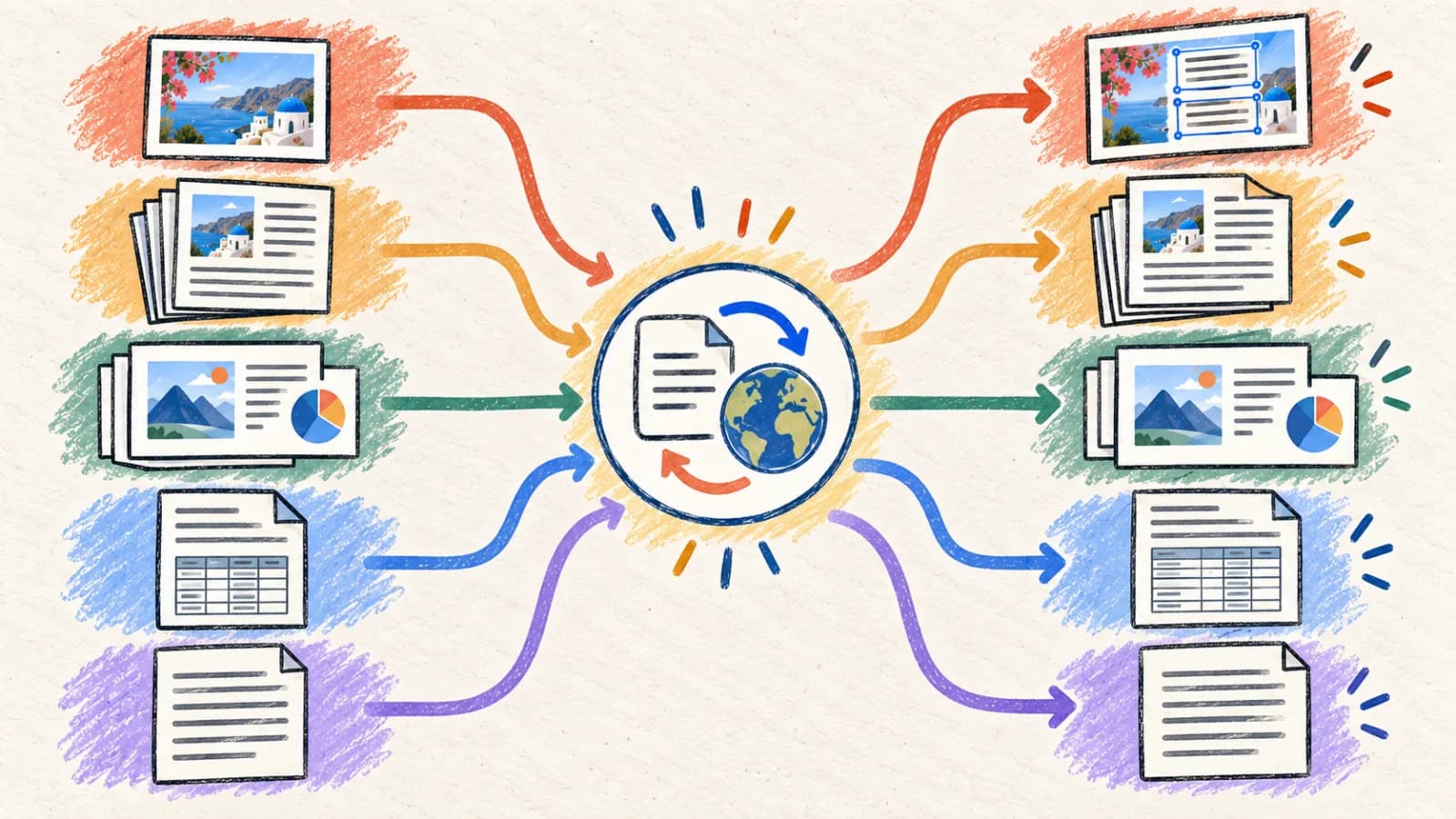
A single sentence can live inside a smartphone screenshot, a multi-page scanned PDF, a slide deck presentation, a Microsoft Word document, or a raw Markdown file. However, processing all of these formats through the same plain text box is highly inefficient.
Forcing every asset through a standard translator strips table borders, flattens editable text layers, ignores speaker notes, and leaves you with hours of manual formatting work. High-quality localization requires routing each file type to a specialized translation engine built to parse and rebuild that specific file structure.
This technical guide provides an architectural decision framework for choosing the right translation workflow, compares the five core file pipelines, and details visual layout and editability trade-offs.
Key takeaways
- Route assets based on file structure: images need inpainting, scanned PDFs need OCR, PPTX files need XML object parsing, and documents need AST parsers.
- Determine editability requirements early; do not convert editable files (like DOCX or PPTX) to static PDFs before translating.
- Use page-range and slide-range selection controls to test small samples (such as high-contrast pages or complex slides) before translating large files.
- Lock product names, URLs, and variables inside terminology glossaries to prevent AI models from translating or malforming them.
- Match your review process to the document's risk level; casual screenshots need quick checks, while safety manuals require dual-pass linguist audits.
Why does the file type change the translation method?
A document's technical value resides in both its words and its structure. A successful translation workflow must preserve the relationships that make your content usable.
Varying underlying data layers
An image stores text as raw color pixels. A DOCX document stores editable paragraph runs and nested styles. A PowerPoint PPTX file stores text in positioned slide coordinate objects. A PDF can contain native vectors, rasterized images, or a mix of both.
Editability vs. layout preservation
A corporate pitch deck must remain fully editable for future revisions, while an annual report handout is often distributed as a static PDF. Routing files incorrectly can flatten editable layers or break your layout alignments.
Layout-dependent contextual meaning
In technical schematics and product graphics, labels rely on spatial positioning (e.g., an arrow pointing to a component). Plain text translation strips these coordinates, destroying the context and resulting in errors.
Text expansion and container overflows
Target languages can expand text volume significantly depending on the language pair and wording. Translators must scale fonts dynamically to keep text inside its designated boundaries.
Varying risk profiles and review requirements
Translating a casual travel sign is low-risk, while translating safety signs or financial audits has significant legal consequences. The same AI tool can generate drafts for both, but high-risk assets require certified human reviews.
Choose a translator by source format
Route your assets to the specialized translation pipeline built to parse and rebuild your file format's unique layout rules.
Method 1: Use a layout-preserving AI image translator
Screenshots, UI mockups, infographics, system diagrams, marketing banners, and product packaging.
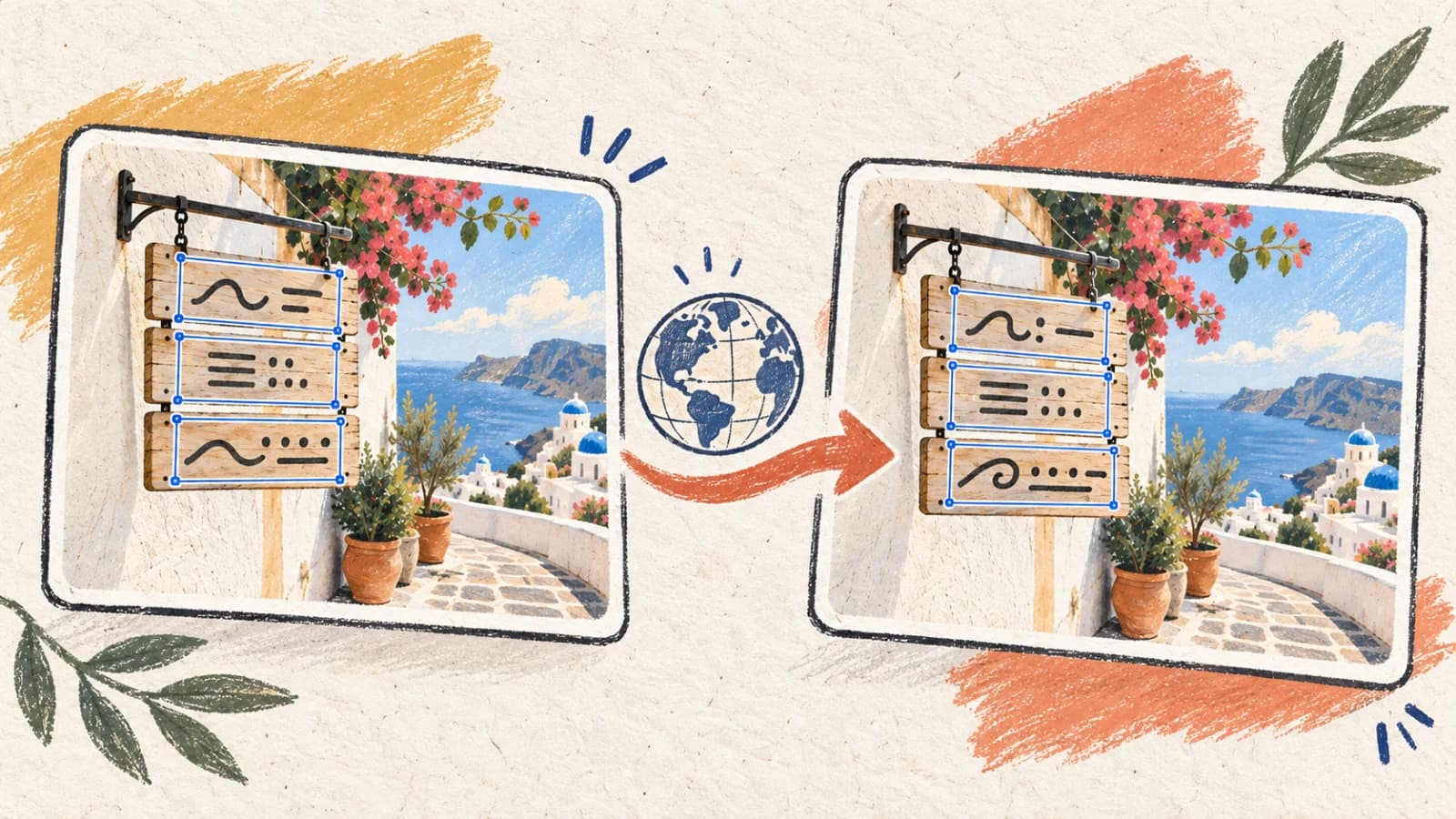
An automated image translator coordinates three systems in a single pipeline: first, an OCR model locates text bounding boxes; second, a vision-based inpainting model cleans the original text from the background; third, an LLM translates the text; and finally, a web-canvas engine renders the translation back in place using matched font sizes, colors, and angles.
This is highly efficient for visual assets because it completely avoids the manual work of erasing original text and rebuilding design layers. To ensure optimal quality, always upload high-resolution files (PNG or lossless WebP) and use terminology glossaries to protect SKU numbers and brand nouns.
Step by step
- Upload your high-resolution image directly to the Image Translator.
- Select your target language and configure terminology glossaries.
- Verify that background textures were inpainted cleanly without leaving visual scars.
- Check text alignment and container boundaries, adjusting scales if necessary.
- Download the localized high-fidelity image asset.
- Crop out black borders or messaging UI to prevent wasting processing resources.
- Ensure text has sufficient contrast against background graphics to assist OCR detection.
Method 2: Use an intelligent PDF translator with advanced OCR
Multi-page scanned or native reports, blueprints, scanned books, financial statements, and technical datasheets.
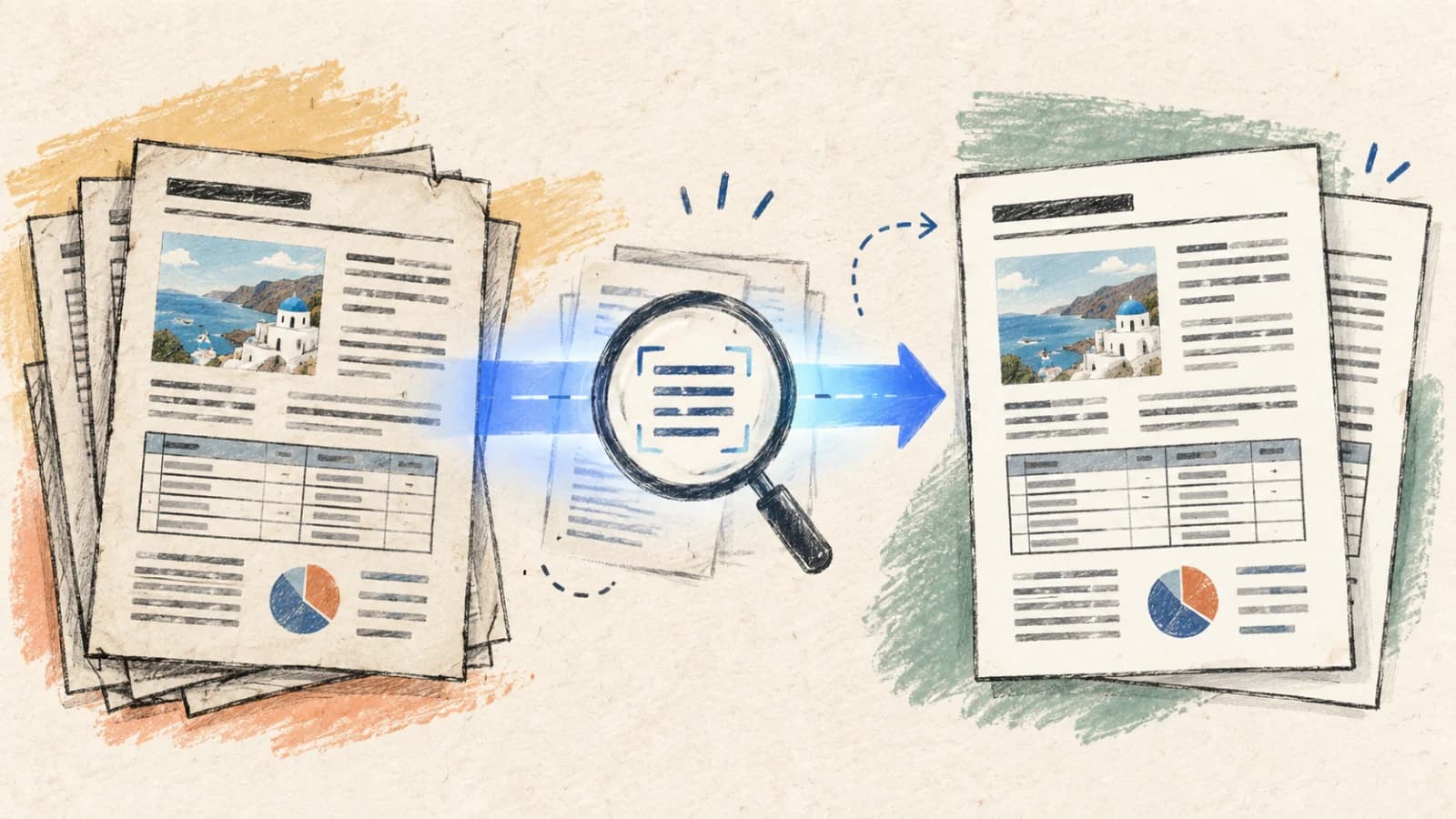
An intelligent PDF translator runs a multi-stage layout analysis pipeline: deskewing the scanned page, segmenting vertical columns, extracting text, translating paragraphs with context, and rebuilding a matching PDF layout. It also embeds appropriate Unicode fallback fonts (like Noto Sans) to prevent display errors.
This is highly reliable for multi-page files. To ensure optimal quality, use page-range selection tools to translate a small sample first. This allows you to audit layout fidelity, column boundaries, and table wrapping before processing the full document.
Step by step
- Upload your PDF directly to the PDF Translator and select the target language.
- Enable the OCR module for scanned pages and configure target script font fallbacks.
- Specify a selective page range to isolate and translate only the required portions.
- Review the output layout, checking column flows and table cell word wrapping.
- Export the finalized, fully searchable translated PDF.
- Ensure files do not exceed maximum upload limits; compress pages if necessary.
- Remove user and owner password protections from the PDF before uploading.
Method 3: Use an automated XML-aware PPTX translator
PowerPoint slide decks, sales presentations, lectures, and corporate templates.
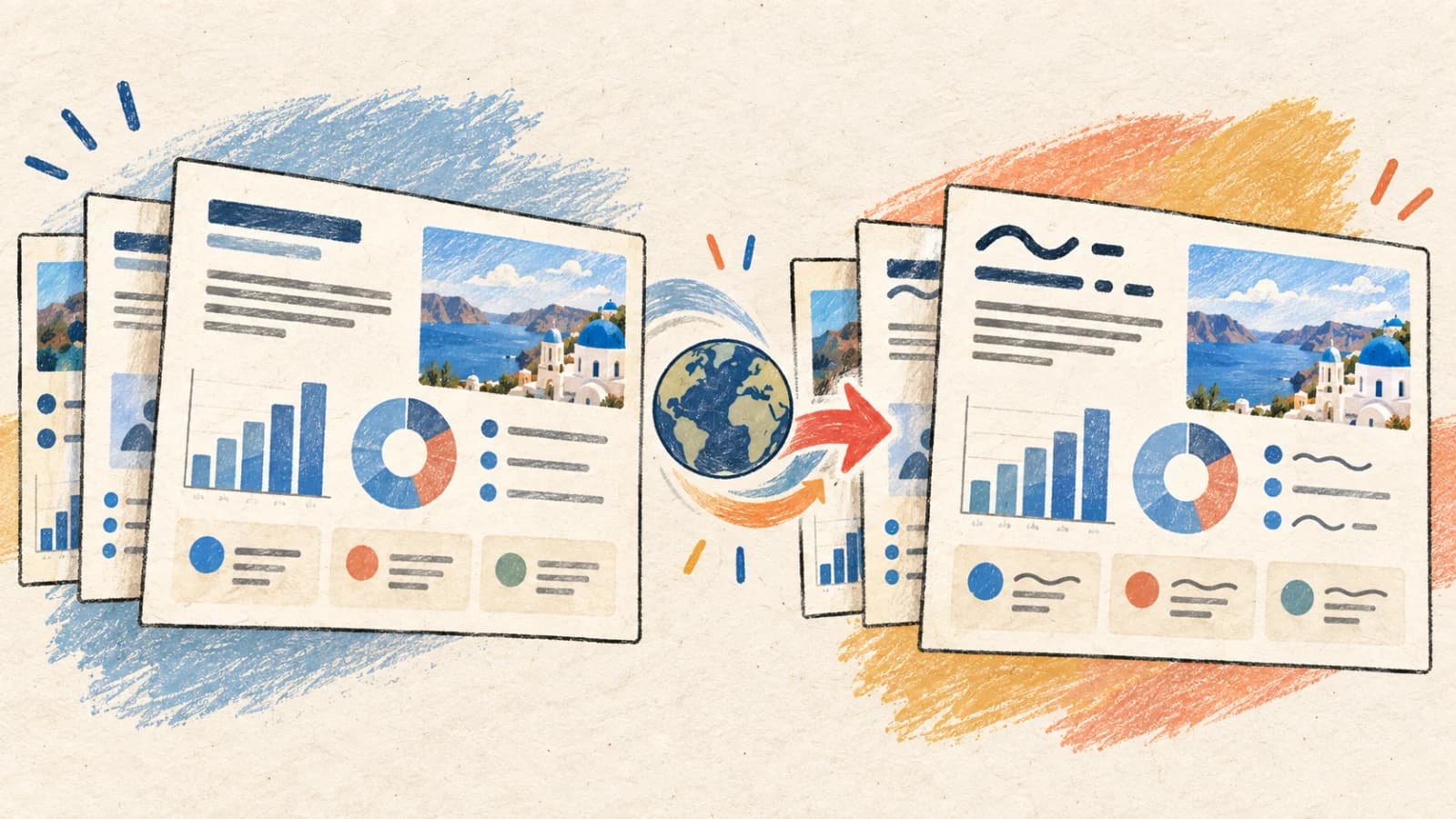
An XML-aware PPTX translator parses your PowerPoint file, isolating and translating text inside slides and speaker notes in-place. This preserves all shapes, animation paths, master layouts, and chart relationships while outputting a fully editable PPTX file.
This is the most efficient workflow for presentation assets because the final file remains editable. The translator features auto-fit text algorithms that dynamically shrink font size to keep expanding translations safely within their original visual boundaries.
Step by step
- Upload your native PPTX presentation directly to the PowerPoint Translator.
- Select the target language and configure speaker notes translation settings.
- Isolate a small slide range (e.g., slides 1-3) to run a test pass and verify layout behavior.
- Run the translator, open the output PPTX in your editor, and verify slide designs.
- Adjust text container widths or font sizes for expanding slides, and save the file.
- Verify that embedded chart labels and legends translated correctly.
- Install all required corporate brand fonts locally before editing the translated PPTX.
Method 4: Use an AST-aware document translator
Microsoft Word DOCX files, raw TXT, and Markdown files needing structural preservation.
An AST-aware document translator parses your document's underlying file structure (such as Word's OpenXML or Markdown AST trees), isolating the text and replacing the strings in-place. This keeps all headings, table structures, bulleted lists, and hyperlink nodes perfectly intact.
This is highly efficient for corporate reports and documentation because the output file remains fully editable and styled. To ensure optimal quality, clean your source file by resolving all tracked changes and editor comments before uploading.
Step by step
- Clean your source document by resolving all tracked changes and comments.
- Upload the DOCX or Markdown file to the Document Translator and select your target language.
- Configure terminology glossaries to protect proper nouns and variables.
- Execute the translation and download the styled, editable localized document.
- Review the output layout, adjusting table column widths and page breaks to handle expanding text.
- For Markdown files, ensure frontmatter metadata blocks and code syntax were not corrupted.
- Verify that all hyperlinks remain active and point to the correct localized URLs.
How to choose and run translation tools on mobile
Managing different file types on mobile devices requires a responsive, cloud-based platform. Avoid installing heavy desktop software by utilizing secure, browser-based portals that process files directly in the cloud.
When translating on a smartphone camera, capture photos parallel to the surface to prevent skew. Use PDF or Markdown formats to ensure files display consistently across different mobile viewports.
- Open our responsive Translation Portal inside your smartphone's web browser.
- Select the specific translator built for your file type (Image, PDF, PPT, or Document).
- Upload your file directly from cloud storage or your camera roll.
- Specify the required page or slide ranges to optimize processing times.
- Execute the translation and download the localized asset, zooming in to verify readability.
Open the image translatorOpen the PDF translatorOpen the PowerPoint translatorOpen the document translator
The master file translation routing guide
Map your asset's file structure and editability requirements to the specialized translation engine designed to handle them.
| Situation | Best choice | Why |
|---|---|---|
| Translating screenshots, UI mockups, packaging designs, or visual banners | Layout-Preserving Image Translator | Automates OCR, background inpainting, and localized typesetting in a single pipeline. |
| Translating scanned multi-page documents, manuals, or blueprints | Intelligent PDF OCR Translator | Deskews pages, segment vertical columns, translates with context, and embeds fonts. |
| Translating slide decks that must remain fully editable in PowerPoint | Automated PPTX Translator | Parses slides and presenter notes XML nodes in-place, keeping layout files intact. |
| Translating styled reports, manuals, or Markdown documentation files | AST-Aware Document Translator | Preserves complex formatting structures, headings, lists, tables, and links automatically. |
Tips for better results
Start from the original format
Do not convert PPTX to PDF or DOCX to images unless the final deliverable requires it. Every conversion can remove structure that a specialized translator could have preserved.
Define the final deliverable
Decide whether the result must be editable, visually faithful, searchable, presentable, or simply understandable. This answer narrows your workflow immediately.
Test the hardest sample first
Choose the dense slide, multi-column PDF page, narrow table, or low-contrast image—not the easiest first page—when evaluating a translation workflow.
Use selective ranges
Page and slide ranges reduce unnecessary work and let you approve terminology and layout before processing a long file.
Keep source and translation together
Use clear version names and store the original beside the result. Reviewers need a reliable reference for names, numbers, visual labels, and future updates.
Check the service's data terms
Before uploading confidential, personal, contractual, or regulated content, confirm storage, retention, access, and deletion terms meet your requirements.
Match review to risk
A casual screenshot may need a quick sense check. Medical, legal, financial, safety, and public brand content needs qualified dual-pass human reviews.
Avoid one-format-fits-all batches
A project folder may contain images, a PDF, a deck, and a Word file. Route each source to its matching specialized tool, then consolidate approved outputs at the project level.
Frequently asked questions
What is the best translator for an image?
Use a layout-preserving image translator when you need the translated words to appear inside the finished visual. Use OCR plus a text translator when you only need to understand or copy the words.
What is the best way to translate a scanned PDF?
Use a PDF translator with OCR enabled. Test a representative page range first, then review reading order, tables, footnotes, stamps, names, and numbers against the original scan.
Should I convert PowerPoint to PDF before translating?
Keep the original PPTX when the result must be editable or presented. Convert to PDF only when the final output is intentionally a fixed handout and speaker notes, animations, and editable objects are not needed.
Is document translation better than copying text?
It is better when headings, lists, tables, links, or one downloadable file matter. Copying selected passages into a text translator is faster when formatting is irrelevant and only a small portion is needed.
Can I use the same translator for every file type?
A general model may translate the words, but specialized workflows preserve different structures: pixels and placement for images, pages and OCR for PDFs, slide objects and notes for PPTX, and styles or headings for documents.
When is human review necessary?
Use qualified review when errors could affect safety, health, legal rights, money, technical operation, brand reputation, or public understanding. Reviewers should see the complete source and formatted translation, not isolated sentences.
Choose the workflow that preserves what matters
The right translator is not simply the one that accepts your words. It is the one that understands your file well enough to preserve the structure your audience needs: visual placement, pages, slide objects, document hierarchy, or clean interactive text.
Begin with the original format, test the most difficult sample, and match the review process to the risk. When a project contains several file types, use the specialized workflow for each one instead of flattening everything into a single format.