How to Translate a Scanned PDF and Keep the Formatting
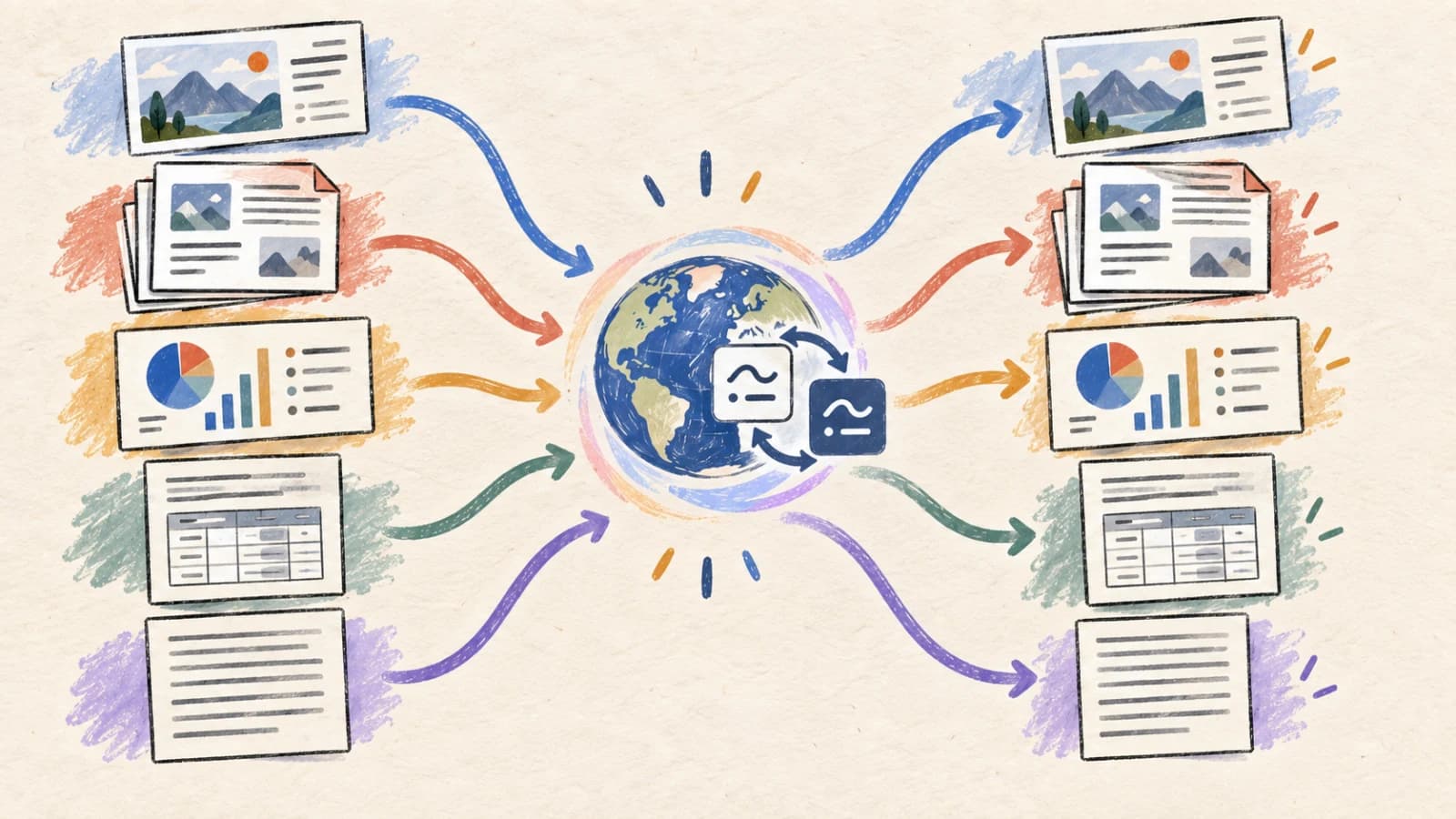
Quick answer To translate a scanned PDF, use a PDF translator with OCR enabled. Select the pages and target language, review the credit estimate, then inspect the translated PDF for missed text, incorrect reading order and overflowing labels. ImageTranslate offers this workflow. A clean scan improves recognition, but complex tables and low-resolution pages may still require manual correction.
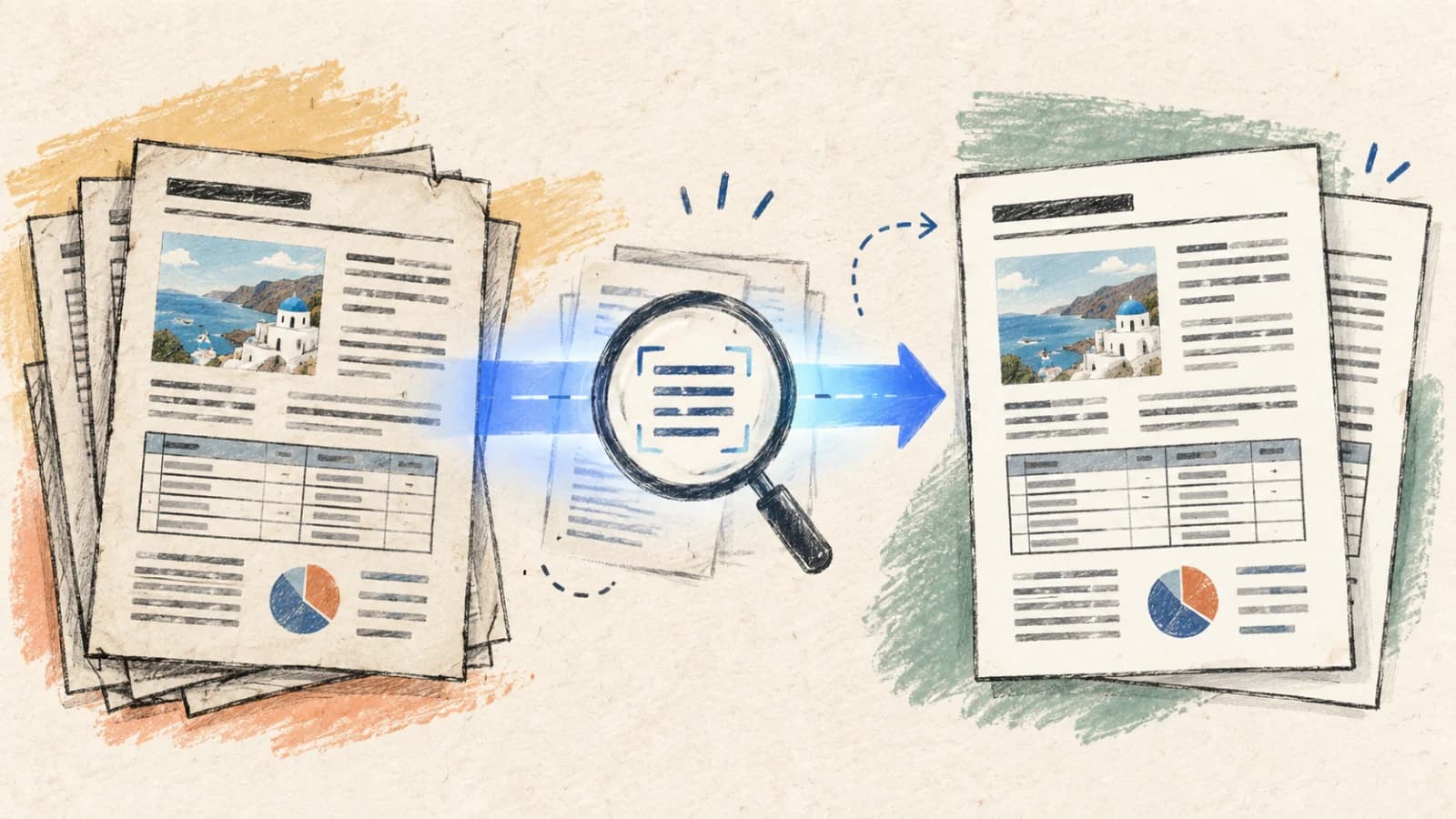
A scanned PDF is essentially a collection of high-resolution digital photographs bundled into a single file. Because there is no underlying text layer, standard text copy operations fail, document search returns zero results, and basic translators output blank pages or throw formatting errors.
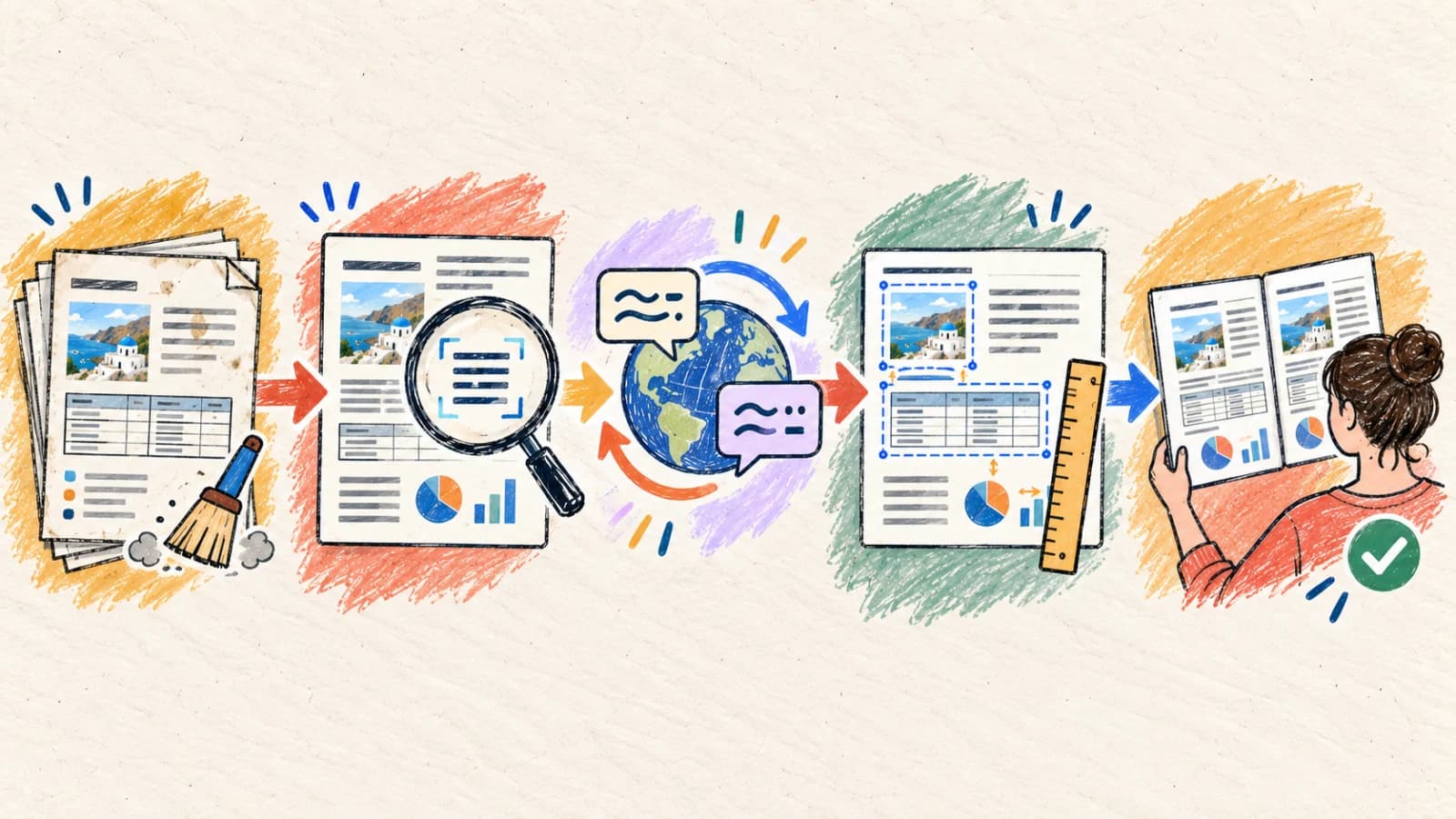
To translate a scanned PDF without destroying its layout, you must use a PDF translator with OCR (Optical Character Recognition) capabilities. The translation pipeline must extract spatial coordinate data, determine reading flows (such as multi-column layouts), translate the strings with context, and dynamically reconstruct a new PDF file. This process must also embed appropriate Unicode fallback fonts to prevent display errors.
This comprehensive guide details how to identify scanned pages, manage complex document layouts, handle non-Latin typography constraints, and verify the final document structures before delivery.
Key takeaways
- If you cannot select or search for a specific word in your PDF, the document requires an OCR-enabled translation pipeline.
- Multi-column PDF layouts (e.g., reports, research papers) require smart block-grouping engines to prevent scrambled sentence translations.
- Font fallback integration is critical; translating to languages like Arabic, Thai, Chinese, Japanese, or Korean requires embedding compatible typefaces (like Noto Sans) to avoid broken character render blocks.
- Restrict translation page ranges when processing massive multi-page documents to lower processing costs and shorten review times.
- Pay close attention to table structures, footnotes, and small stamps, which are highly prone to formatting breaks during text expansion.
Why are scanned PDFs difficult to translate?
Unlike native documents, scanned PDFs provide no layout vectors or characters. Reconstructing an identical multi-page document in a different language requires advanced document parsing.
Lack of a structured text layer
A scanner records a flat image of the page. The translator must parse the visual shapes of letters, assemble them into cohesive words and paragraphs, and perform layout analysis before translating the text blocks.
Multi-column reading order confusion
Academic papers, magazines, and financial reports use columns, sidebars, and callout boxes. Simple OCR engines parse text horizontally across the entire page, merging independent columns and corrupting the linguistic context.
Missing non-Latin font map metadata
When translating English to languages with non-Latin scripts (such as Arabic, Thai, or Japanese), the output PDF must embed new font map files. Without proper fallback fonts, PDF readers cannot display the glyphs, resulting in empty boxes.
Strict boundary constraints in tables
Tables, forms, and technical specifications have rigid physical boundaries. When a translated sentence expands beyond the original cell width, the layout engine must scale down the text size or wrap lines elegantly to avoid breaking tables.
Scanning noise and rotation artifacts
Physical pages are rarely scanned perfectly. Curvature near the book spine, low contrast, skewed page angles, and handwritten notes generate visual noise, resulting in OCR misreadings that translate incorrectly.
Four practical methods for translating a scanned PDF
Choose a translation approach based on the document's design complexity, size, and whether the final file must remain editable.
Method 1: Use an intelligent PDF translator with advanced OCR
Scanned user manuals, multi-column reports, scanned books, receipts, and technical datasheets where page layouts must match.
An intelligent, OCR-capable PDF translator handles the entire pipeline: deskewing the scanned page, segmenting the columns, extracting text strings, translating them with deep contextual models, and rebuilding a matching PDF layout.
This is the most efficient method because it eliminates manual file conversion steps. To achieve the best results, use high-contrast scans. Always use page-range select tools to test a small, representative section (like a page containing both tables and columns) to verify layout fidelity before processing the full document.
Step by step
- Upload your scanned PDF directly to the PDF Translator.
- Enable the OCR processing module and select the specific target language.
- Set up custom font fallback rules (e.g., mapping Noto Sans for Asian or Middle Eastern languages).
- Specify a selective page range to isolate and translate only the required portions of the file.
- Run the translator, audit formatting alignments, and export the high-definition translated PDF.
- Ensure your PDF file does not exceed maximum upload size limits; compress pages if necessary.
- If some tables are extremely complex, translate them as isolated page ranges.
Method 2: Extract key pages as high-resolution images
Visually complex blueprints, highly detailed single-page schematics, and maps with dense directional labels.
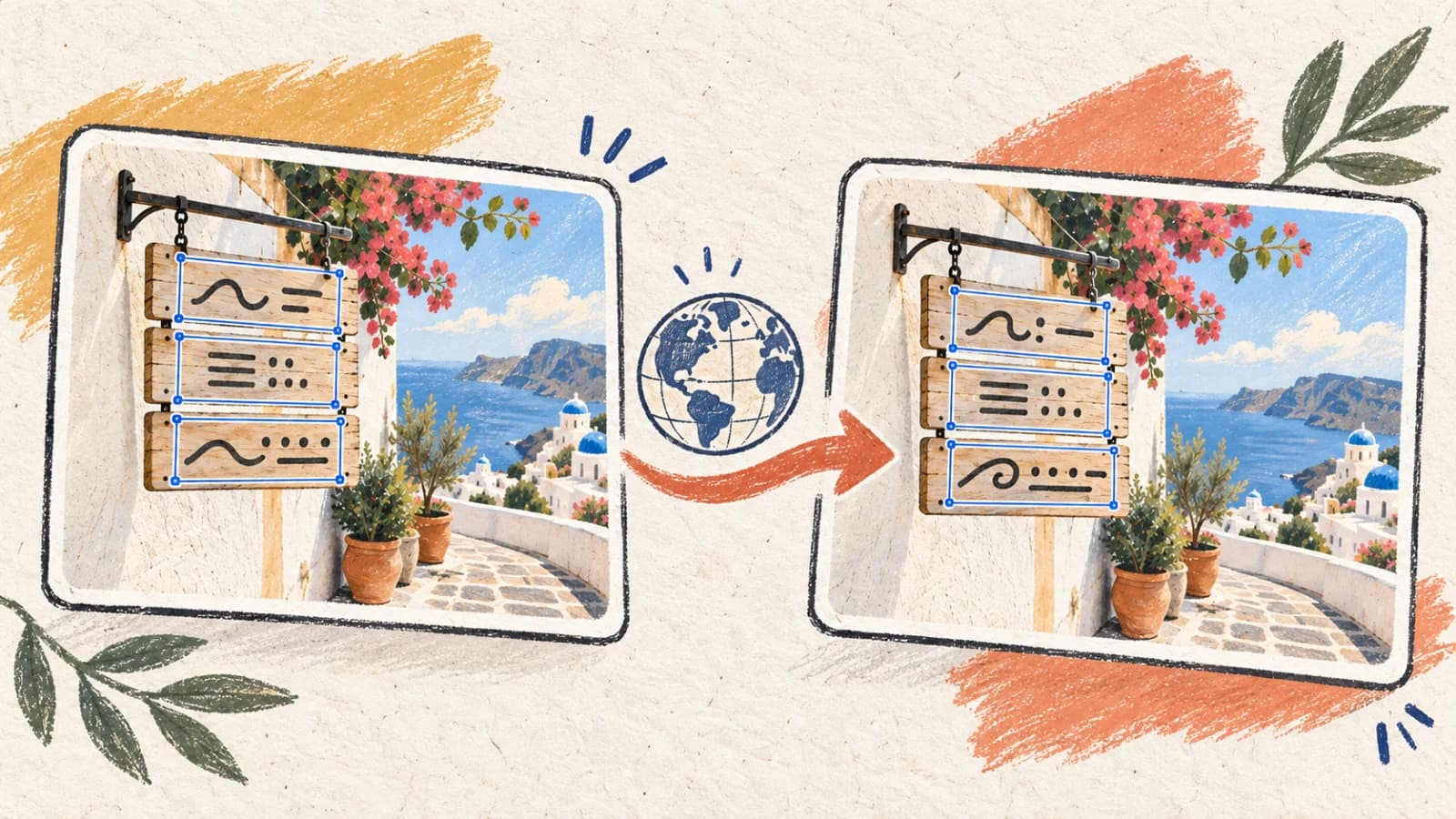
When a document consists of highly complex single-page layouts, translating the file as a PDF can sometimes strip critical background elements. Instead, export the target pages as lossless PNG images and process them through an image translator.
This method leverages advanced visual inpainting to erase old labels and typeset the translations directly over the drawing background. It is highly reliable for single-page files but becomes tedious when managing multi-page documents.
Step by step
- Convert the critical pages of your scanned PDF to high-resolution PNG images.
- Upload the images to the layout-preserving Image Translator.
- Choose the target language and configure standard translation models.
- Check the visual layout, ensuring background graphics and labels align correctly.
- Download the translated images and, if needed, reassemble them into a clean multi-page PDF document.
Method 3: Run OCR and convert the document to editable DOCX or Markdown
Content-first editing workflows, legal drafts, and research analysis where text editability is more important than page layout.
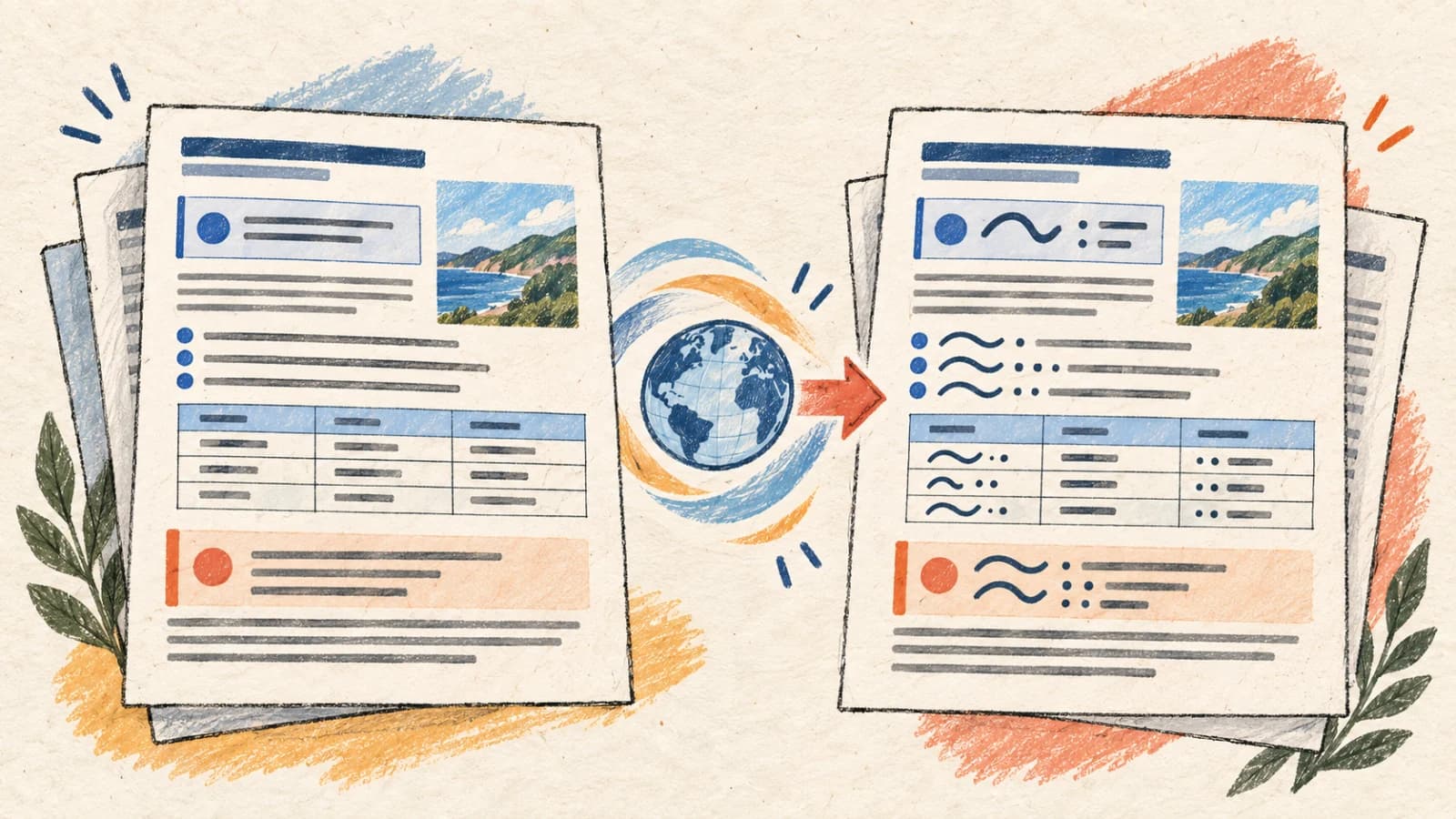
If your primary goal is to edit, annotate, and distribute the translated text, preserving the exact original PDF page structures is counterproductive. Instead, use an OCR engine to convert the scanned document into a structured Microsoft Word (DOCX) or Markdown file first.
Once converted, you can translate the file directly. This workflow ensures that translated text flows naturally across pages without being confined to rigid, scanned coordinate boxes. It is ideal for contracts, manuscripts, and reports.
Step by step
- Process the scanned PDF through an OCR scanner to export a structured Word (DOCX) or Markdown file.
- Open the exported file and correct any lingering character-recognition or column-merging errors.
- Upload the sanitized document to the Document Translator.
- Translate the document while keeping headings, lists, tables, and hyperlinks intact.
- Export the translated file, finalise layout adjustments, and distribute as needed.
Method 4: Combine automated AI translation with manual vector typesetting
Premium brochures, commercial product catalogs, and high-consequence customer-facing scanned materials.
For high-value business assets, automated layout reconstruction serves as an excellent starting draft. After translating the scanned document programmatically, export the raw translated text strings and hand them to a graphic designer or desktop publisher.
Using professional design tools (such as Adobe InDesign or Illustrator), the designer manually typesets the localized content over the original artwork. This gives the designer control over typography and font weights, but the result still needs review in each target language.
Step by step
- Generate an automated translation draft of the PDF using our advanced tools.
- Extract the translated text strings into an Excel or XLIFF translation memory file.
- Have a graphic specialist import the approved translation strings into the native vector design files.
- Manually adjust text boxes, leading, and tracking to fit the target language's expansion.
- Compile and export the finalized, high-fidelity PDF asset.
How to translate scanned PDFs on mobile devices
Managing scanned documents on mobile devices requires a streamlined, browser-based workflow. Avoid heavy desktop application installations by utilizing responsive cloud translation portals that handle OCR and formatting dynamically in the browser.
When capturing pages using a smartphone camera, utilize a document-scanning application to auto-crop, adjust contrast, and flatten skew angles before uploading the file for translation.
- Open the responsive PDF Translator in your mobile web browser.
- Select your scanned document from Files or import it from cloud storage.
- Select your target language and enable OCR-driven translation.
- Specify the required page range to avoid unnecessary processing time and mobile memory bloat.
- Execute the translation and download the structured PDF, zooming in to review table alignments.
Choose your scanned PDF translation path
Map your document layout complexity and editing requirements to the optimal OCR and translation workflow.
| Situation | Best choice | Why |
|---|---|---|
| Translating multi-page reports or scanned books with page layouts | Intelligent PDF OCR Translator | Automates deskewing, column layout analysis, translation, and PDF rebuilding. |
| Working with single-page technical blueprints or highly visual maps | Image Extraction + Image Translator | Leverages visual inpainting to erase old labels and typeset directly over graphics. |
| Need to actively edit, append, or restructure the translated text | OCR Conversion to DOCX + Document Translator | Converts rigid image boundaries into flowing, editable paragraphs and table cells. |
| Localizing critical corporate brochures or brand-critical catalogs | AI Translation Draft + Vector Typesetting | Ensures perfect corporate typography, brand-font consistency, and professional design. |
Tips for better results
Enforce document deskewing
Always ensure scanned pages are straight. Skewed or tilted scans distort text lines, which disrupts layout segmentation engines and results in scrambled translations.
Configure target script font fallbacks
When translating to non-Latin scripts (Arabic, Thai, CJK), check if the layout engine supports proper font fallbacks to prevent empty rendering blocks (tofu characters).
Isolate relevant page ranges
Do not translate entire multi-hundred page documents if you only need specific chapters. Scoping the page range speeds up processing and lowers translation costs.
Review multi-column boundaries
Verify that column text does not bleed horizontally into adjacent blocks. If side-by-side reading structures are broken, check paragraph order against the source scan.
Verify numerical integrity and units
Scan noise often misinterprets numbers (e.g., reading '8' as 'B' or '1' as 'I'). Cross-reference all prices, technical measurements, and specifications with the source.
Check table cell word wrapping
Text expansion frequently forces translated words to wrap onto new lines within tight table boundaries. Expand column limits or adjust font scales to keep tables readable.
Purge low-contrast scanning noise
Background shadows, stains, and spine bleed-through are easily misread as punctuation or random characters. Pre-process low-quality scans to clean backgrounds.
Maintain structured translation caches
Use translation memory and caches for recurring documents. This ensures consistent terminology and avoids paying twice for translating identical boilerplate sections.
Frequently asked questions
Why can't I search or select text in my translated scanned PDF?
If the source PDF was a raw image scan and translated with basic overlay engines, it remains an image-based file. Our advanced PDF OCR Translator injects an active invisible text layer behind the rendered characters, making your final localized PDF fully searchable and selectable.
How does the PDF engine handle complex side-by-side column layouts?
The engine runs a layout-analysis model that identifies vertical page dividers, image boundaries, and block zones. It structures text into a logical tree before sending paragraphs to the translation model, ensuring columns are translated as continuous individual flows rather than merged horizontally.
What happens if the target language doesn't fit into the original table cells?
Text expansion is a common problem when translating English to European languages. The translation engine dynamically reduces the font scale (using auto-fit algorithms) or wraps lines within the cell boundaries to keep tables perfectly aligned.
How can I translate a scanned PDF that is password-protected?
Our system requires access to the document's raster data to run OCR. You must remove user and owner passwords from the PDF file before uploading it for translation. Check file permissions before uploading.
Why did some non-Latin characters (like Arabic or Japanese) display as empty squares?
This is a font mapping error known as 'tofu'. It occurs when the PDF viewer lacks a compatible Unicode font. Our PDF engine embeds appropriate typefaces (such as Noto Sans Arabic or Noto Sans CJK) directly into the file, ensuring glyphs display correctly on all devices.
Is there a page limit for scanned PDF uploads?
Limits vary based on your subscription plan. For extremely long documents, we recommend utilizing page-range controls to translate the file in logical batches, which speeds up processing and simplifies review.
Unlock structured data from scanned documents
Translating scanned PDFs successfully requires a deep understanding of document structure and layout reconstruction. Standard plain text extraction strips formatting, while basic overlays fail to handle columns and tables.
By combining advanced OCR layout segmentation, context-aware LLMs, and precise font-fallback embeddings, you can produce highly readable, professional, and searchable translated PDFs that respect the original design hierarchy.