How to Translate a Document Without Losing Formatting
Quick answer Use the original DOCX file in a document translator to retain paragraphs, tables and styles where supported. ImageTranslate also accepts TXT and Markdown files. Choose the languages, review the estimate and inspect the downloaded result against the original. Check headings, page breaks, numbers and table cells; complex documents may need manual layout corrections after translation.
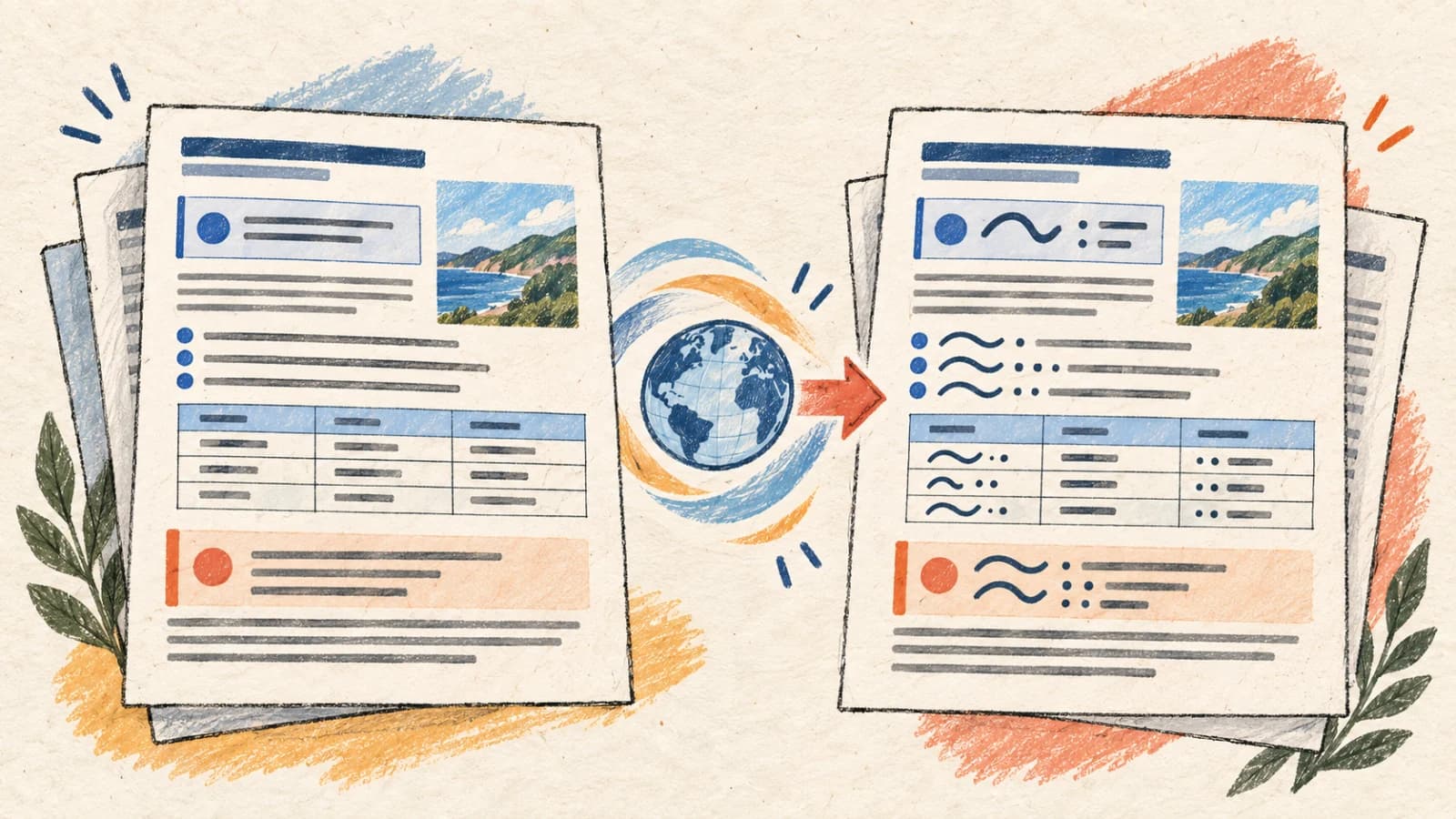
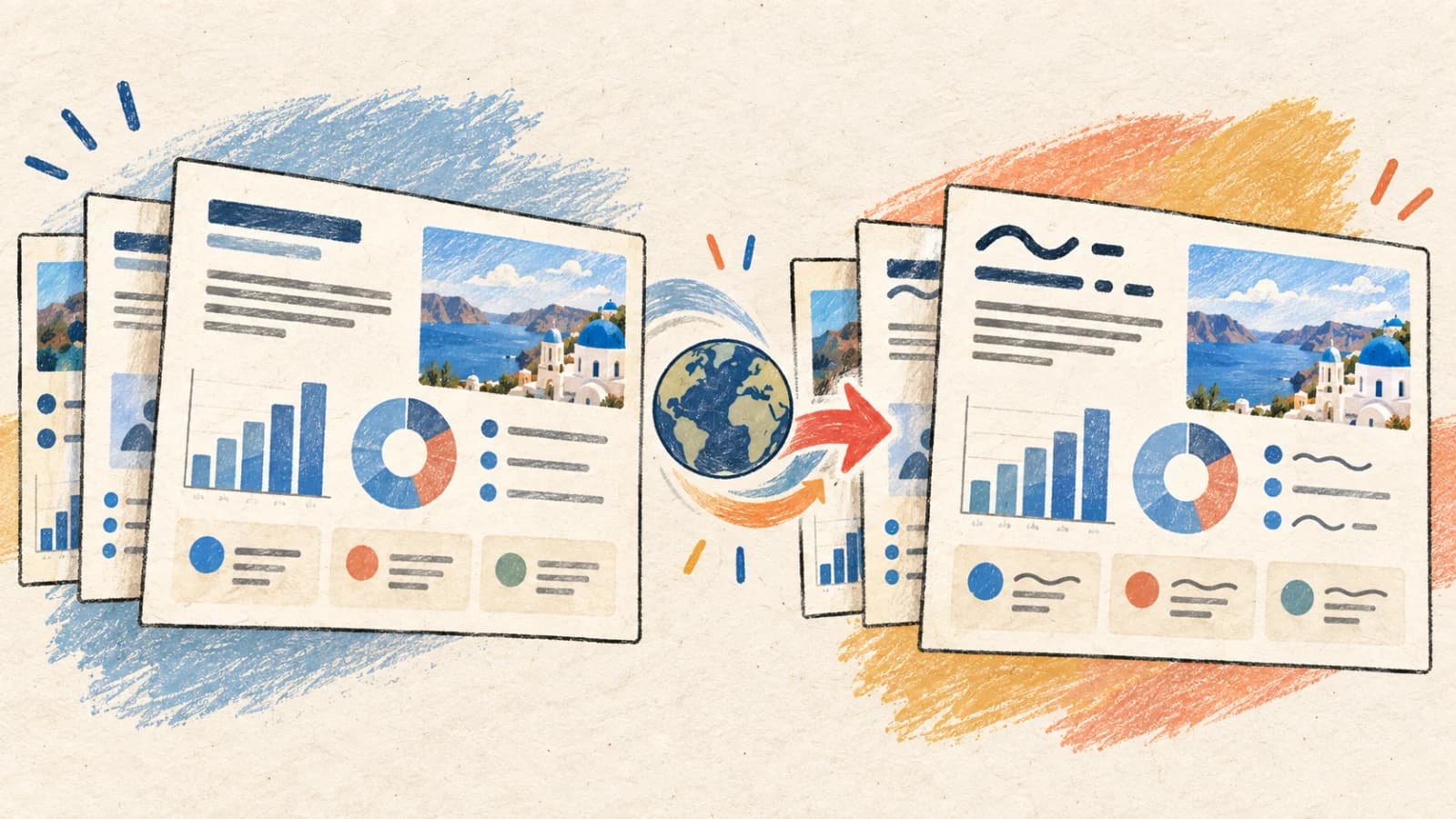
Translating a structured document should never involve manually copying paragraphs into a basic text box. While this approach translates the words, it strips away headings, tables, hyperlinks, code blocks, lists, and page layout formatting. Re-creating these formatting structures manually after translation is incredibly time-consuming.
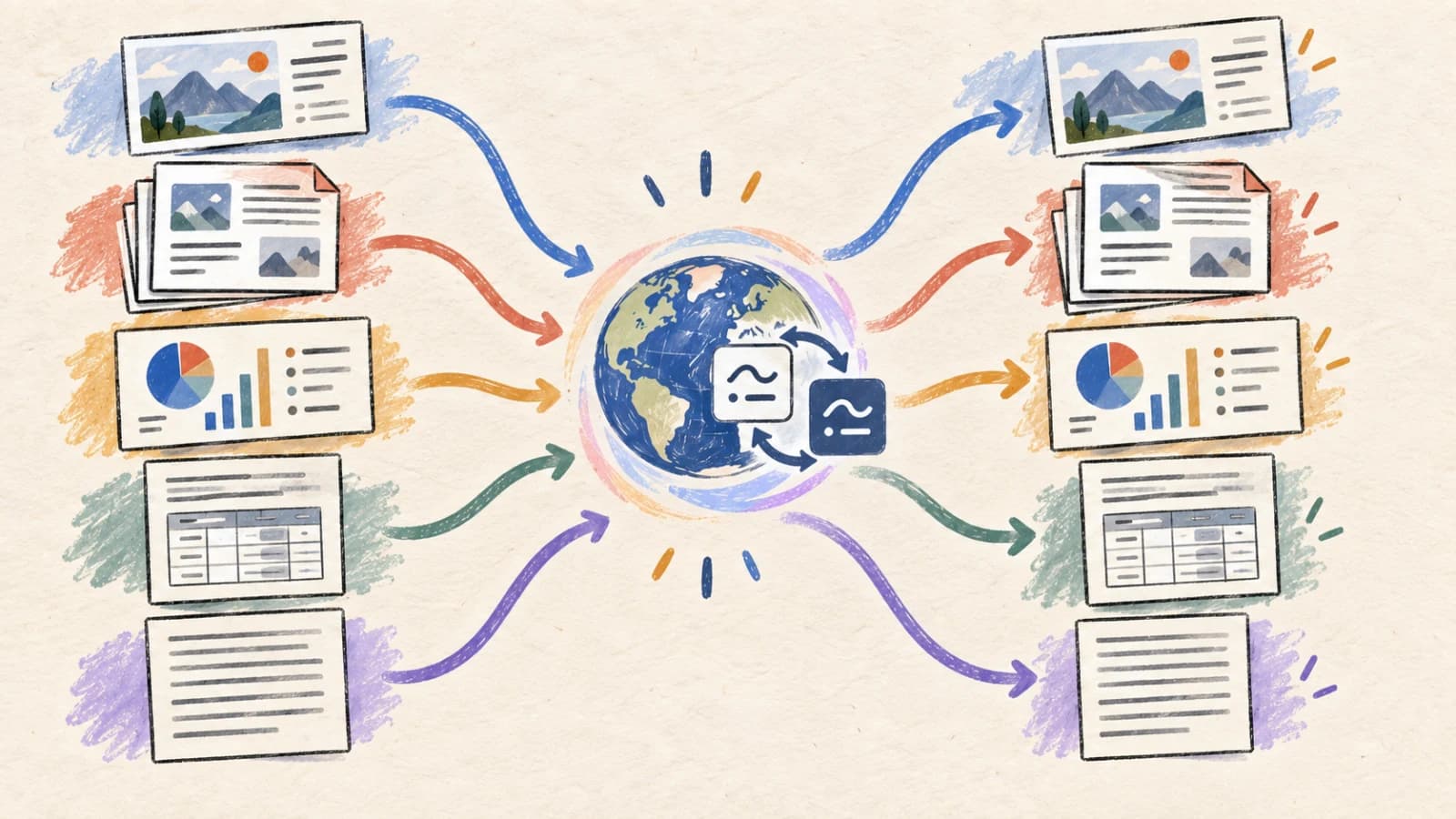
When you need to localize reports, guides, proposals, manuscripts, or policy manuals, you must upload the original document format directly. A document translator parses files using AST (Abstract Syntax Tree) and OpenXML structure parsers to translate the text content while keeping all formatting tags, table structures, and styles intact.
This technical guide explains why formatting breaks during translation, compares automated and manual workflows, outlines mobile optimization steps, and provides a preflight and post-translation audit checklist.
Key takeaways
- Translate the native DOCX, TXT, or Markdown files directly to preserve styles, nested tables, lists, and hyperlinks.
- Always accept tracked changes, resolve comments, and clean up source documents before uploading them to prevent AI context corruption.
- Markdown and raw TXT files are highly efficient for content-first workflows where visual page formatting is decoupled from the content.
- PDF translation should be reserved for read-only distributions where the layout must remain completely locked.
- Separate your quality checks into a language translation pass and a visual layout pass to ensure accuracy.
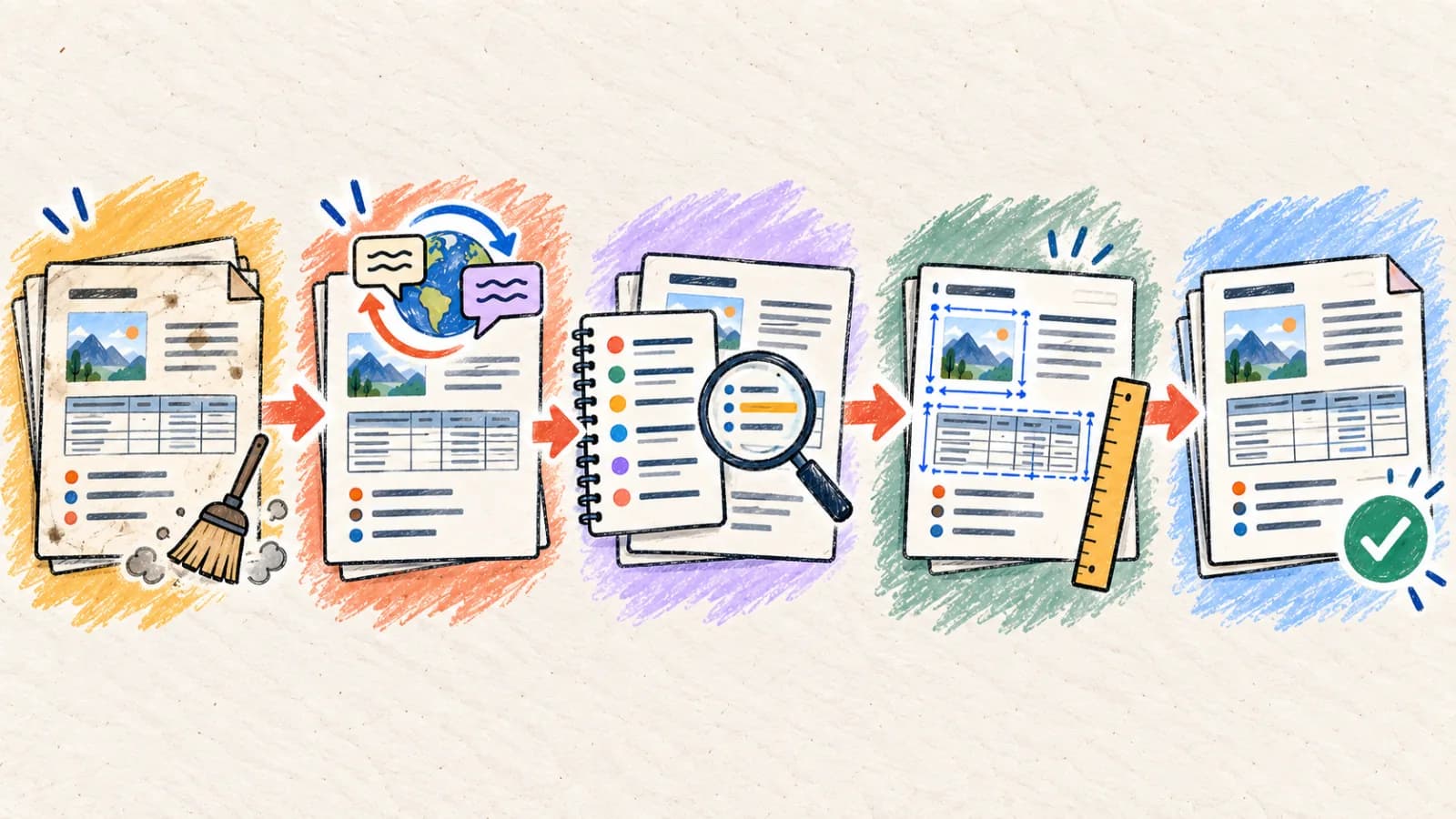
Why does document formatting change after translation?
A document file is a complex tree of text runs, styles, references, and table cells. Machine translation must navigate this data structure without corrupting formatting tags.
Word expansion shifts page flows
Translated text can expand significantly depending on the language pair and wording. This expansion causes headings to wrap onto second lines, pushes paragraphs down, and moves page breaks, which can throw off your layout.
XML run fragmentation
A single word inside a DOCX file can be split across multiple XML tags due to spelling checks, formatting changes, or tracked edits. Basic parsers break sentence structures at these boundaries, resulting in fragmented and incorrect AI translations.
Strict table cell boundaries
Table cells have rigid horizontal boundaries. When translated content expands, it forces text to wrap tightly, creating tall cells, broken column headers, and unreadable table layouts unless formatting scales are adjusted.
Dynamic fields and auto-generated lists
Tables of contents, page numbers, dynamic index references, and footnotes rely on system fields. Programmatic translation must isolate these structural components, translating only visible text while keeping the underlying field structures intact.
Tracked changes and comments bloat
A document containing unresolved revisions, deleted text runs, or editor comments contains multiple overlapping versions of the same sentence. Translating these directly results in redundant and confusing outputs.
Four ways to translate a document
Select your document translation method based on your target file format, editing requirements, and translation scale.
Method 1: Translate the native DOCX, TXT, or Markdown file
Reports, corporate manuals, guides, manuscripts, contracts, and technical documents where text must remain fully editable.
An AST-aware document translator parses the document's file structure (such as Word's OpenXML or Markdown AST trees), isolates the text, translates it using context-aware models, and replaces the strings in-place. This preserves all headings, table structures, bulleted lists, and hyperlink nodes.
This is the most efficient method because the output file remains fully editable and styled. To ensure optimal quality, clean up the source file by resolving all tracked changes and editor comments before uploading it for translation.
Step by step
- Open your source document and accept all tracked changes, resolve comments, and delete unused formatting layers.
- Upload the clean DOCX or Markdown file directly to the Document Translator.
- Select the target language and configure standard translation guidelines and terminology glossaries.
- Execute the translation and download the styled, fully editable localized document.
- Review the output layout, adjusting table column widths and page breaks to handle expanding text.
- Verify that all hyperlinks remain active and point to the correct localized URLs.
- For Markdown files, ensure frontmatter metadata blocks and code block formatting were not corrupted.
Method 2: Convert to PDF and translate the PDF layout
Static corporate reports, brochures, invoices, and reference manuals where the page layout must remain locked.
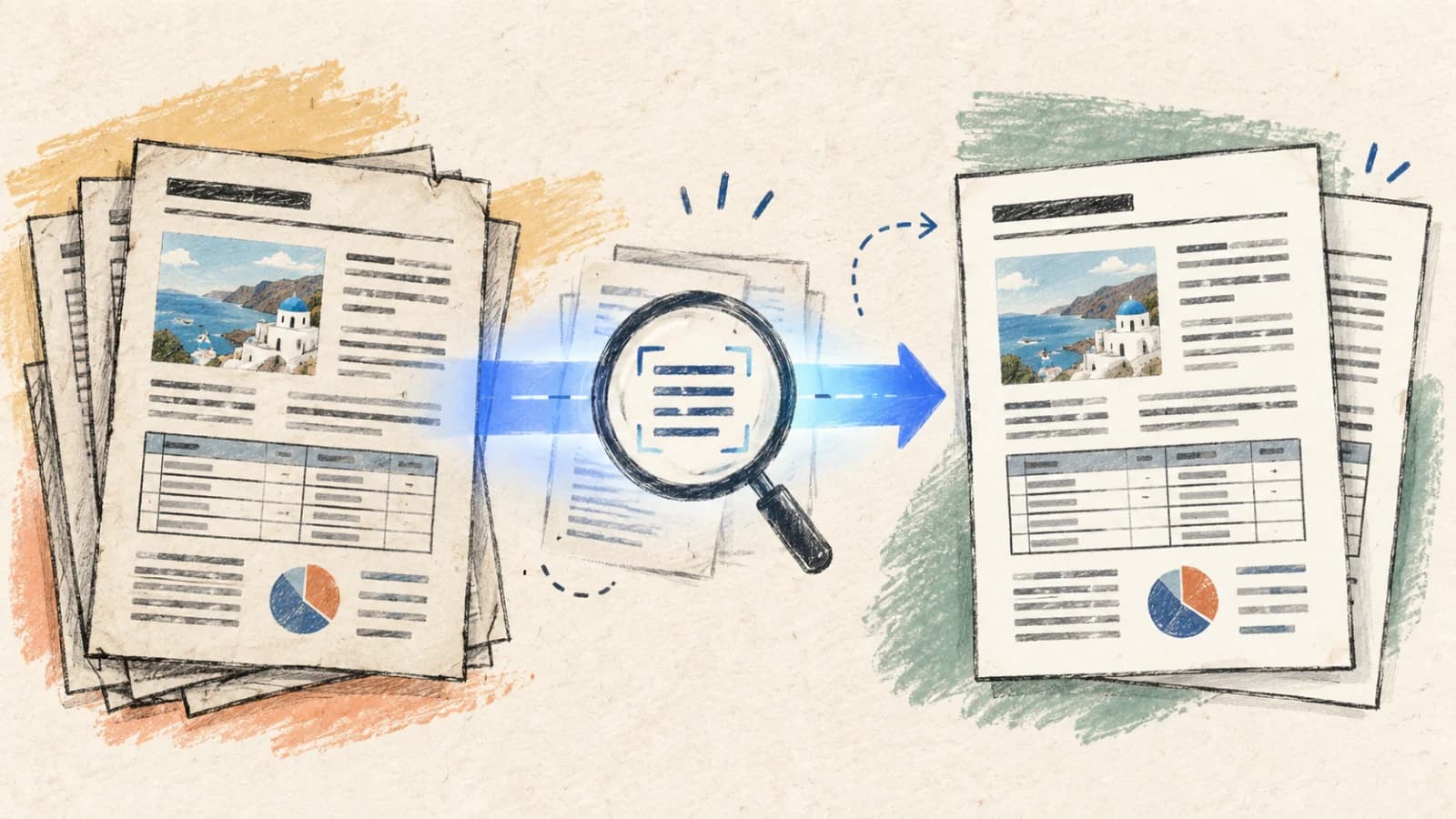
If your final document is a read-only PDF handout where maintaining the exact page layout is more important than editability, you can bypass document editing. Convert your file to a PDF first, and process it through a layout-preserving PDF translator.
This method locks all text blocks, tables, and images in place, preventing any page flow shifts or table alignment issues. However, the final output is a static PDF, and editing the text layers later requires professional PDF tools.
Step by step
- Save your styled document as a standard PDF file.
- Upload the PDF to our PDF Translator and select the target language.
- Inspect the translated layout, confirming that tables, headers, and footers are aligned correctly.
- Verify that font scripts render correctly and that no text runs are clipped.
- Download and distribute the final, layout-locked translated PDF.
Method 3: Extract text blocks, translate interactively, and rebuild
Short technical copy, ad campaigns, and single-page forms requiring precise, interactive terminology editing.
For short documents with highly critical vocabulary (such as ad campaigns or forms), translating the whole file can introduce unnecessary formatting steps. Instead, extract the text blocks manually or run them through a text translation tool.
This allows you to translate paragraphs interactively, test different terminology choices, and refine the translation on a screen before applying it. Once finalized, you paste the approved copy back into your styled document template.
Step by step
- Extract the text blocks from your document into an interactive Text Translator.
- Select the target language and configure terminology glossaries to ensure brand consistency.
- Translate the paragraphs interactively, adjusting sentences for clarity and flow.
- Paste the approved localized text back into your master document template.
- Verify document formatting and distribute the finalized file.
Method 4: Use a professional XLIFF / CAT translation pipeline
Enterprise-scale document localization campaigns utilizing translation memory database servers and certified linguist audits.
For large-scale corporate document translation, files are processed using professional Computer-Assisted Translation (CAT) tools. The document's structural nodes are extracted into standard XLIFF files, which isolate text strings while protecting formatting tags.
Professional linguists translate the XLIFF tables using terminology glossaries and translation memory databases. Once translated, the approved strings are re-imported into the document structure. This ensures enterprise-grade linguistic quality but requires manual layout audits afterward.
Step by step
- Convert your source document into a structured XLIFF or Excel file.
- Send the file to certified linguists or process it through an enterprise translation platform.
- Import the translated strings back into the native document format.
- Manually review the layout, fixing any page overflow or column alignment issues.
- Export the finalized document and archive the translation memory for future updates.
How to translate documents on mobile devices
Translating documents on mobile devices is highly convenient for business travel. Instead of installing heavy desktop software, utilize responsive browser-based translation tools that can process files directly in the cloud.
When reviewing translated documents on a smartphone screen, verify that lists, tables, and headings remain legible. Use PDF or Markdown formats to ensure files display consistently across different mobile devices.
- Open our Document Translator inside your smartphone's web browser.
- Upload your document (DOCX, TXT, or Markdown) from Files or cloud storage.
- Select your target language and initiate the translation process.
- Zoom in to inspect headings, bulleted lists, tables, and hyperlinks.
- Download and save the high-quality translated document, ready to share.
Determine your document translation approach
Map your document's editing requirements and visual layout complexity to the most efficient translation workflow.
| Situation | Best choice | Why |
|---|---|---|
| Translating manuals, guides, or reports that must remain fully editable | Automated Document Translator (DOCX/Markdown) | Extracts and translates text blocks while leaving all headings, lists, tables, and formatting intact. |
| Sharing static handouts or corporate policy documents | Convert to PDF + PDF Translator | Locks all page elements, preventing container overflows and font spacing shifts. |
| Working with short technical copy or ad campaigns requiring precise wording | Interactive Text Translator | Enables real-time, interactive translation and editing of critical terms. |
| Managing large enterprise document localization campaigns | XLIFF/Excel CAT Translation Pipeline | Integrates smoothly with standard translation memories and professional linguist review workflows. |
Tips for better results
Clean source document history
Always accept tracked changes, resolve editor comments, and remove unused formatting styles before translating. Unresolved edits fragment document files, corrupting translation quality.
Protect Markdown formatting tags
When translating Markdown, ensure code blocks, bold markers, and frontmatter metadata keys are protected. AI models should never translate or alter syntax structure.
Optimize for text expansion margins
When designing document layouts, avoid packing text boxes and tables tightly. Leave room around content containers and inspect the translated document for page overflow.
Standardize on Unicode fonts
Choose cross-platform, Unicode-compliant fonts (such as Arial or Noto Sans) that support non-Latin scripts, preventing font-rendering errors on localized documents.
Check table column wrapping
Text expansion frequently forces translated words to wrap onto new lines within tight table boundaries. Expand column limits or adjust font scales to keep tables readable.
Lock technical glossaries and brand terms
Ensure model numbers, SKU codes, and proprietary brand nouns are protected. Non-translatable assets must remain uniform across all localized document variations.
Verify dynamic fields and indexes
After translating a DOCX file, refresh automated fields like tables of contents and page numbers in Word to ensure they update correctly with the localized text.
Review tables of contents page mappings
Since text expansion moves page boundaries, always update your table of contents page mappings before exporting the finalized document.
Frequently asked questions
Will translating my Word file break bulleted lists and tables?
No. Our automated Document Translator parses the document file structure directly, isolating and translating only the text nodes. All tables, list structures, borders, and styles remain fully intact.
Can I translate Markdown files containing code blocks and frontmatter?
Yes, our parser is AST-aware. It identifies Markdown formatting syntax, code block structures, and YAML frontmatter keys, ensuring they are protected while translating only the body text.
What happens if a translated phrase overflows my table cells?
The document translator parses cell bounds and wraps text elegantly. To prevent tall, unreadable table rows, you can manually adjust column widths or reduce font sizes in your editor.
How can I translate a document that has unresolved tracked changes?
We strongly recommend accepting all tracked changes and resolving comments before uploading. Documents with active revisions contain overlapping text runs, which corrupts AI translation context.
Why did my headings wrap onto multiple lines after translation?
This is a common result of text expansion (e.g., translating English to German or Spanish). You can manually adjust the document margins, reduce heading font sizes, or use more concise phrasing.
Is there a file size limit for document uploads?
Upload limits depend on your current subscription plan. If your file contains large embedded images or media assets, we recommend removing them before translating, then re-inserting them into the localized output.
Preserve document structure for professional results
Translating documents successfully requires a deep understanding of file structures and layout formatting. Standard copy-paste methods strip styling and lead to massive formatting issues.
By leveraging automated AST-aware document translators, cleaning source files before processing, and planning for language expansion, you can deliver high-impact, professional documents that respect your layout standards in any language.