How to Translate a PowerPoint Without Changing the Layout
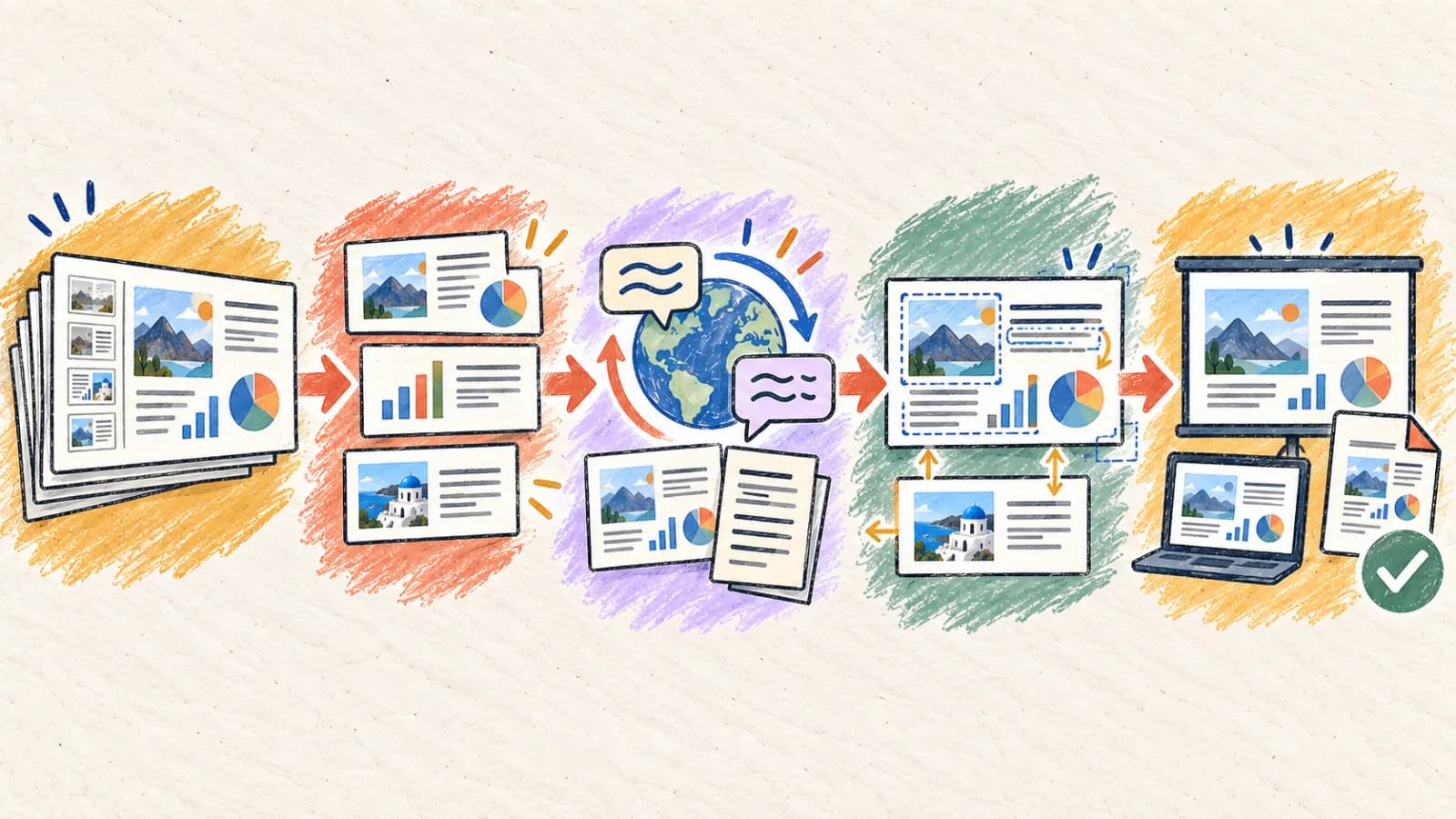
Quick answer Translate the original PPTX file instead of copying each slide into a text translator. In ImageTranslate, select the target language, choose the slides and optionally include speaker notes. Review the exported presentation for text overflow, labels and untranslated text embedded in images. Slide structure can be retained, but longer translations may require font or spacing adjustments.
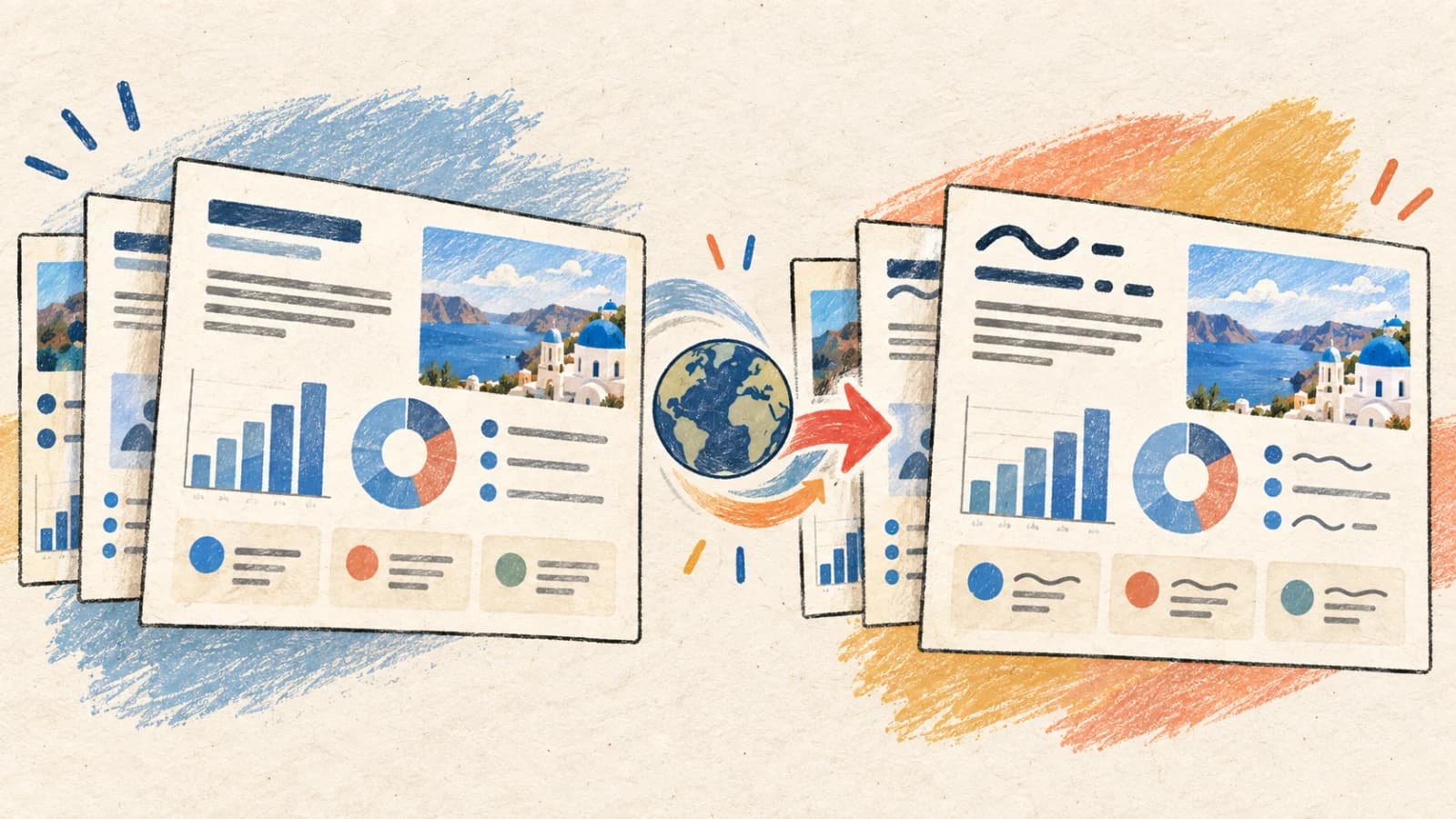
A PowerPoint presentation is a visual communication deck. Slide objects—including title headers, content blocks, shapes, SmartArt diagrams, charts, and presenter notes—are meticulously aligned on a fixed canvas. When translating a presentation, simply copying text into a web translator and pasting it back is highly inefficient and prone to errors.
Naïve copy-paste operations strip slide master styles and lead to layout formatting issues. Because translated text often expands or contracts, text lines can overflow containers, wrap awkwardly onto multiple lines, or overlap adjacent graphics. Programmatic PPTX translation parses the deck's underlying XML structure to replace text inside individual objects while preserving formatting styles.
This technical guide explains how PowerPoint XML layouts function, outlines four translation workflows, provides mobile review optimization guidelines, and delivers a layout auditing checklist for corporate decks.
Key takeaways
- Translate the native PPTX file directly to preserve editable text layers, animation paths, and slide master relationships.
- Use slide-range selection controls to translate a 3-slide sample first, verifying typography and text sizes before processing large decks.
- Always check whether presenter notes are translated; they contain the presenter's script and are easily overlooked by basic translators.
- Script expansion (especially English to German, French, or Spanish) can shrink fonts; check that text remains legible at full presentation size.
- Lock product names and key technical acronyms in a terminology list to maintain brand consistency across localized slide variations.
Why does PowerPoint formatting break during translation?
PowerPoint layouts are designed around specific character counts. When text size changes during translation, the layout must adapt to prevent visual clutter.
Rigid text container boundaries
Unlike flowing documents, slide containers are absolute coordinates on a fixed grid. If a translated phrase is longer than the source, the text wraps, overflows the container, or overlaps neighboring images.
Grouped objects and diagram scales
SmartArt flowcharts, timeline diagrams, and icon groups bundle text within graphic shapes. These shapes do not auto-scale well, forcing long translated terms to overflow boundaries or overlap line paths.
Conflict between inline styles and master slides
PowerPoint decks use slide masters for global styling, but individual slides often contain local overrides. Automated translation must parse the XML tree carefully to update text strings without stripping custom styling, colors, or fonts.
Invisible presenter notes metadata layers
The slides contain high-level bullet points, but the real technical value often resides in the presenter notes. Standard file parsers overlook these hidden notes, translating the visual slides but leaving the speaker script in the source language.
Font script mapping mismatches
A corporate brand font designed for Latin characters might lack Unicode character mappings for languages like Arabic, Thai, Chinese, Japanese, or Korean. When translating, PowerPoint falls back to system fonts, altering text spacing and wrapping.
Four ways to translate a PowerPoint presentation
Select a PowerPoint translation approach based on whether your presentation needs to remain editable, your layout's complexity, and your localization volume.
Method 1: Use an automated XML-aware PPTX translator
Corporate presentations, sales decks, educational slideshows, and training materials where editability must be maintained.
An XML-aware PPTX translator parses your PowerPoint file, isolates the text strings inside slides and presenter notes, translates them using context-aware LLMs, and replaces the strings in-place. This preserves all shapes, animation paths, master layouts, and chart relationships.
This is the most efficient workflow because the final output remains an editable PPTX file. The engine can run auto-shrink algorithms on expanding text, keeping it within container boundaries. It is ideal for high-volume corporate localization projects.
Step by step
- Upload your native PPTX presentation directly to the PowerPoint Translator.
- Select the target language and configure whether speaker notes should be translated alongside slides.
- Isolate a small slide range (e.g., slides 1-3) to run a test pass and verify layout behavior.
- Run the translator, then download and open the translated PPTX in your slide editor.
- Adjust text container sizes and font scales for expanding slides, then save the localized file.
- Ensure all corporate fonts are installed locally before editing the translated PPTX file.
- Verify that embedded chart labels and legends translated correctly.
Method 2: Convert PPTX to PDF and translate the PDF layout
Static slideshow distributions, read-only handouts, and reference decks where slide editability is not required.
If the final presentation will be shared as a read-only PDF handout, translating the PowerPoint deck can be bypassed. First, export your presentation as a PDF. Then, run the file through a layout-preserving PDF translator.
This workflow ensures that slides remain perfectly locked, preventing any text container overflow or shape drift. However, the output is a fixed, non-editable PDF, meaning you cannot adjust speaker notes or edit the text layers later.
Step by step
- Save your PowerPoint presentation as a standard PDF file.
- Upload the PDF to our PDF Translator, choosing your target language.
- Audit the translated pages, ensuring columns and visual layouts match the source slide design.
- Verify that font scripts render correctly and that no text blocks are clipped.
- Download and distribute the final, fixed translated presentation.
Method 3: Extract slides text to XLIFF/Excel, translate, and re-import
Large-scale enterprise localization campaigns utilizing external translation vendors and translation memory systems.
For massive corporate localization pipelines, presentations are processed using professional translation tools. The PPTX file is parsed to extract text strings into standardized Excel or XLIFF files. These translation tables are translated by professionals, using translation memory to maintain term consistency.
Once translated, the approved strings are re-imported into the slide structure. While this process ensures maximum linguistic quality, it requires manual design adjustments afterward to fix text box overlaps caused by language expansion.
Step by step
- Extract the text strings from your PPTX presentation into a structured Excel or XLIFF file.
- Send the file to professional translators or process it using high-quality translation engines.
- Re-import the translated strings into your PowerPoint slide structures.
- Manually review every slide, adjusting font sizes and boundary margins for expanding text.
- Export the finalized, human-approved PowerPoint deck.
Method 4: Generate an automated draft and manually re-typeset
High-end keynote presentations, product launches, investor pitches, and conference decks requiring perfect styling.
For high-profile investor pitches and conference keynotes, automated systems should only be used to create translation drafts. First, run the presentation through our automated PPTX translator to get a spatial and terminology reference.
Then, have a professional designer open your design templates (e.g., in Figma, InDesign, or Keynote). The designer manually inputs the approved localized text, adjusting column widths, spacing, and typographic hierarchies to deliver an exceptional, human-crafted layout.
Step by step
- Run the PPTX presentation through the automated PowerPoint Translator to obtain a draft.
- Compile a glossary of approved translations for product terms, slogans, and corporate metrics.
- Open your original slide design templates in Keynote or Figma.
- Manually replace text elements layer by layer, adjusting visual weights and line wrapping.
- Review the deck in presenter slideshow view on a large display to check presentation quality.
How to translate PowerPoint slides on mobile devices
Reviewing and editing presentation slides on mobile devices is highly convenient for business travel. Instead of using heavy desktop applications, utilize responsive browser-based translation tools that can process files directly in the cloud.
When reviewing slides on a smartphone screen, check that small annotations, legend labels, and presenter notes remain readable. Zoom in to verify that overlapping containers do not block critical visual elements.
- Launch our PowerPoint Translator inside your smartphone's web browser.
- Upload your target PPTX presentation directly from Files or cloud storage.
- Choose your target language and initiate the translation process.
- Use pinch-to-zoom to inspect slide containers, charts, and speaker notes.
- Download and save the high-quality translated PPTX, ready for mobile presentation.
Determine your PowerPoint translation approach
Map your presentation's visual complexity and editability requirements to the most efficient translation workflow.
| Situation | Best choice | Why |
|---|---|---|
| Translating corporate, training, or product decks that must remain fully editable | Automated PPTX Translator | Extracts and translates slide and speaker notes XML nodes in-place, keeping layout files intact. |
| Distributing static handouts, lecture notes, or reference slide materials | Convert to PDF + PDF Translator | Locks all slide elements, preventing container overflows and font spacing shifts. |
| Handling large-scale translation campaigns utilizing professional linguist vendors | Excel/XLIFF Extraction + Re-import | Integrates smoothly with standard translation memories to ensure enterprise consistency. |
| Delivering high-profile investor pitches, keynotes, or product launches | AI Layout Draft + Graphic Typesetting | Provides designers with absolute control over slide layouts, kerning, and visual impact. |
Tips for better results
Preserve speaker notes layers
Always translate speaker notes alongside slide text. Speaker notes contain the spoken presentation script, which is easily missed by basic document parsers.
Isolate slide range tests
Run a test translation on slides 1-3 first. Verifying font mappings and text scaling on a small sample avoids having to re-process large decks.
Optimize for text expansion margins
When designing slides, avoid packing text containers tightly. Leave room around text boxes and check the actual translated text for overlap.
Standardize on Unicode brand fonts
Choose cross-platform, Unicode-compliant fonts (such as Arial or Noto Sans) that support non-Latin scripts, preventing font-rendering errors on localized slides.
Un-group graphic shapes and text layers
Complex flowcharts and SmartArt objects are prone to formatting issues during translation. Un-group these shapes in your editor before translating to improve layout scaling.
Lock technical glossaries and brand terms
Ensure model numbers, SKU codes, and proprietary brand nouns are protected. Non-translatable assets must remain uniform across all localized presentation slides.
Verify numbers, dates, and currency notations
Translate metrics to match regional standards, ensuring decimal notations (commas vs. periods) and currency formats align with your local audience.
Audit slides in presenter slideshow view
Layout issues that seem minor in the editor can look terrible at full display size. Always run a full slideshow pass to audit visual quality before presenting.
Frequently asked questions
Will translating my PPTX file break original animations and slide transitions?
No. Our automated PowerPoint Translator parses the XML structure of the presentation, isolating and translating only the text nodes. All animations, transition paths, shapes, and master layouts remain intact.
Can I translate speaker notes and slide content at the same time?
Yes, our PowerPoint Translator fully supports speaker notes. You can enable or disable notes translation depending on whether you are preparing audience handouts or a presenter script.
What happens if a translated phrase overflows its slide container?
The engine features auto-fit text algorithms that dynamically shrink font size and adjust line wrapping to keep translated strings safely within their original visual boundaries.
How can I translate text that is embedded inside a chart or graph?
Our XML-aware parser can translate editable chart labels, legends, and title nodes. If a chart is an un-editable raster image, you must translate it using our Image Translator or update the source data.
Why did my custom corporate font change after translation?
If your brand font lacks character mappings for the target language's script (e.g., Arabic, Thai, Chinese), the presentation editor will fall back to system fonts, altering layout spacing. Ensure your font supports the target script.
Is there a maximum file size for PowerPoint uploads?
Upload limits depend on your current subscription plan. If your deck contains large video or high-resolution image assets, we recommend removing them before translating, then re-inserting them into the final localized PPTX.
Deliver seamless, professional presentation decks
Translating PowerPoint files successfully requires a deep understanding of slide structures and object layouts. Standard copy-paste methods strip styling and lead to massive formatting issues.
By leveraging automated XML-aware PPTX translators, preserving speaker notes, and planning for language expansion, you can deliver high-impact, professional presentations that respect your brand's layout standards in any language.